FAQ page
The FAQ page is a Shopify page that uses Reign's faq template. The template stacks several FAQ sections (one topic each) and finishes with a contact section, so customers read your answers and then reach you if they still need help. You manage it like any other page: create the page in Pages, assign the faq template, then arrange the content in the theme editor.
Create the page and assign the template
- In your Shopify admin, go to Online Store, then Pages.
- Click Add page, or open an existing page you want to use.
- Give the page a title (for example "FAQ" or "Help").
- In the Theme template box on the right, choose faq.
- Click Save.
The page now renders with the FAQ layout. To change the layout or copy, open it in the theme editor.
Open the page in the theme editor
- Go to Online Store, then Themes.
- On your Reign theme, click Customize.
- In the top bar, open the page picker (it usually says "Home page"), choose Pages, then your FAQ page.
- The editor loads the page with its sections in the left panel.
What the template ships with
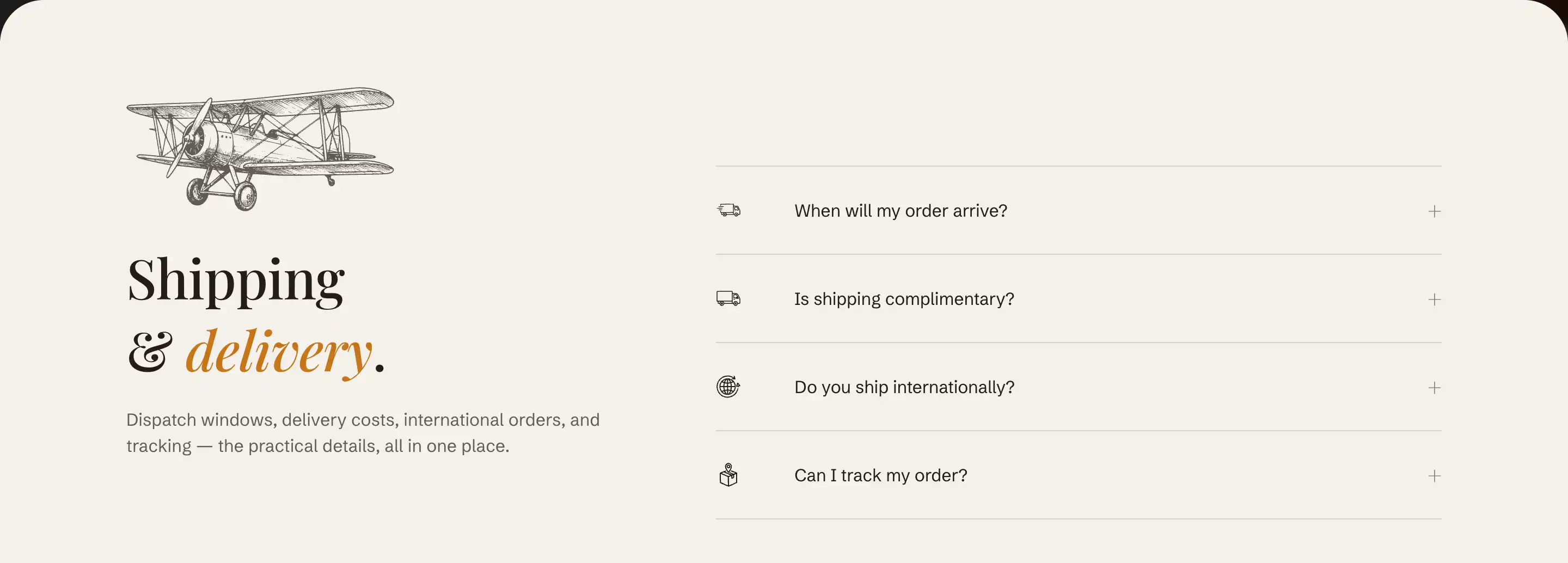
The faq template comes with four FAQ sections grouped by topic (such as returns, products, and orders), followed by a contact section at the foot of the page. Each FAQ section holds a heading area and a list of expandable Question rows. These are sections and blocks: rename the groups, reorder them, edit or remove the sample questions, and add more FAQ sections when you have more topics.
The four FAQ sections and the Question rows inside them are covered in full by the FAQ section article. The contact section at the foot has its own settings and is covered by Contact page and form.
Edit a topic group
Each topic is one FAQ section. To change a group:
- In the left panel, select the FAQ section you want to edit.
- Edit its heading area (the Header content slot at the top) to rename the group or change its intro line.
- Add, reorder, or remove Question rows under that section.
A single FAQ section holds up to 24 Question rows. If you outgrow that, add another FAQ section from Add section under the Storytelling group.
For the Icon, Category, Question, and Answer settings on each row, and the section's own settings, see the FAQ section article.
Tips
- Keep one FAQ section per topic. Grouped questions let customers scan to the right area instead of reading one long list.
- Reorder the topic groups so the questions you get asked most sit near the top.
- Keep the contact section at the foot so the page ends with a way to reach you when no answer fits. To change its form fields or contact rows, see Contact page and form.