FAQ section
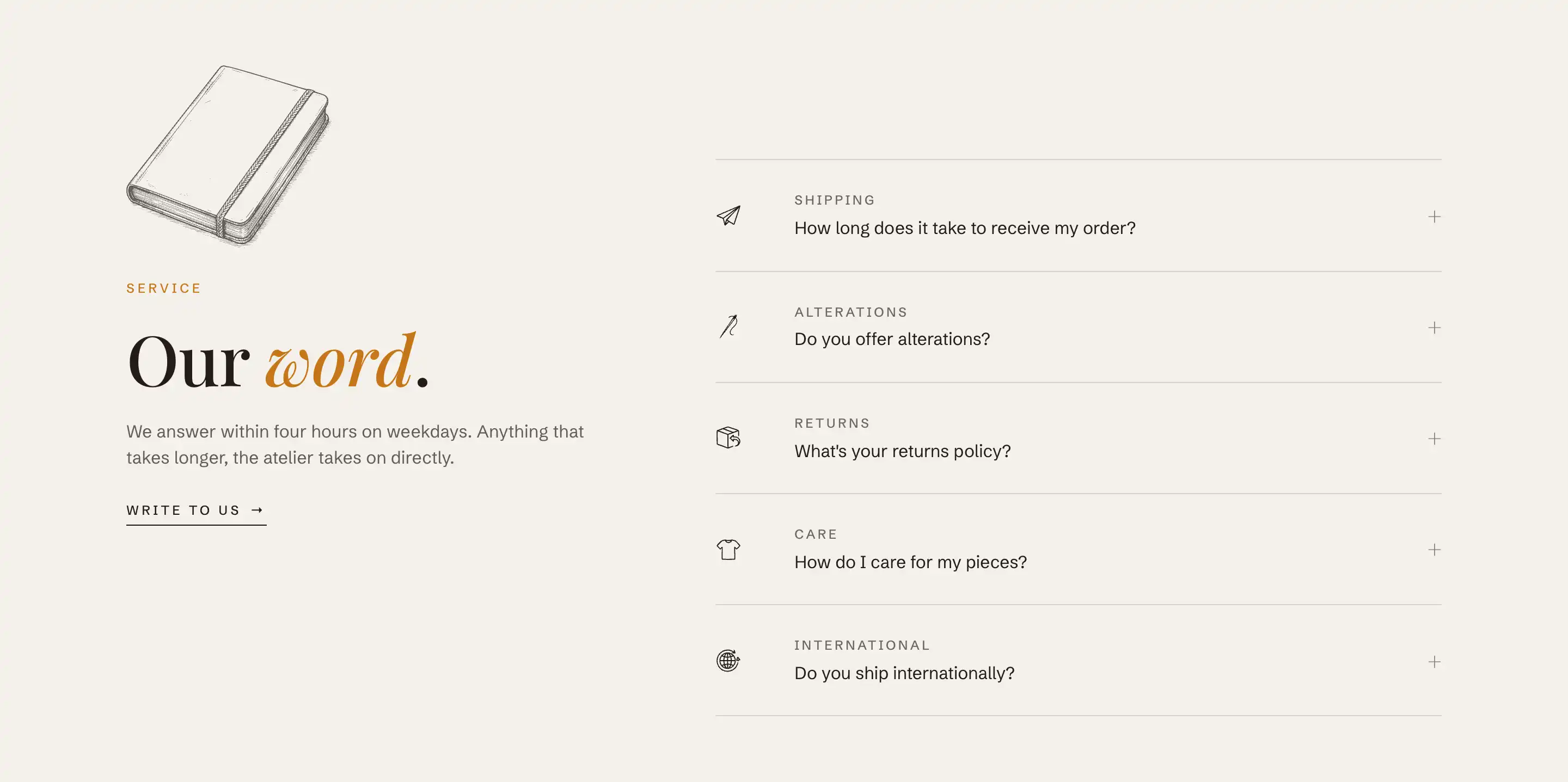
The FAQ section pairs a heading area with a list of expandable questions. Each question opens to reveal its answer. Use it on the homepage, a page, or anywhere shoppers look for common answers without leaving the page.
Add the section
- In the theme editor, open the page where you want the FAQ.
- Click Add section.
- Under the Storytelling group, choose FAQ.
The section arrives as one preset: a filled-in heading area and five sample questions. Edit or replace the samples with your own. You can add up to 24 questions in one section.
The heading area
The heading area is a content slot named Header at the top of the section. It comes preloaded with an illustration, an eyebrow, a heading, a short intro paragraph, and a link button. These are blocks: click any one to change its text, remove the ones you do not want, or add more.
Add and edit questions
Each question is a Question block in the section's blocks.
- Select the FAQ section.
- Click Add block and choose Question.
- Fill in the question and its answer.
- Drag blocks in the block list to reorder them.
Question settings
Open a Question block to set:
- Icon: the icon shown next to the question. Pick one from the grouped list. Groups include Shipping & delivery, Payments, Trust & guarantees, Service & contact, Products & services, Sustainability, Materials & care, Sizing, Seasonal & promotions, Store & location, and General.
- Category: a short topic label above the question, such as Shipping or Returns. Leave it empty to hide it.
- Question: the text on the row shoppers click to expand.
- Answer: the text revealed when the row opens. This field accepts rich text, so you can add links, bold, and lists.
Section settings
This section uses the standard Color, Padding, Margin, and Visibility controls. See Common section settings.
Tips
- Every row starts collapsed, including the first. The section opens no answer on load.
- Use Category only when a one-word topic helps shoppers scan the list. Leave it blank for a cleaner row.
- Long answers are fine. The answer reveals at full height when a shopper opens the row, so you do not need to keep them short.
- For a collapsible row on a product page rather than a standalone section, use the Collapsible row block in the Product info column instead. See Product page layout.