Quick order list
Quick order list shows every variant of a product in one table, each with a quantity stepper, so a customer can set amounts across many variants and add them all in a single step. It suits wholesale, bulk, and any product where people buy several variants at once (sizes, flavors, pack counts).
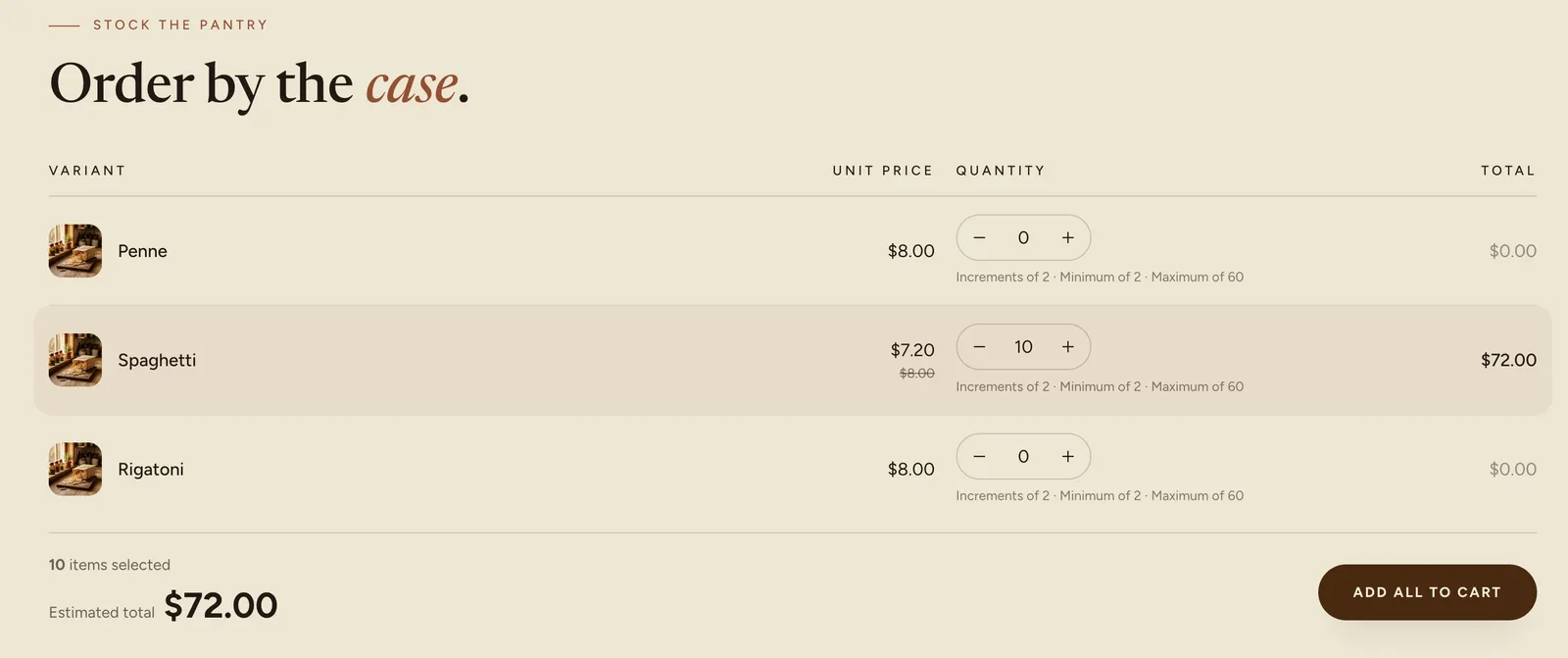
What it shows
The table lists one row per variant, with four columns:
- Variant: the variant name, with an optional image and SKU.
- Unit price: the per-item price. Hidden on phones to save room.
- Quantity: a stepper to set how many of that variant to order.
- Total: the line total for that variant, which updates as the quantity changes.
Below the table, a summary shows how many items are selected and an Estimated total, next to an Add all to cart button that adds every filled row in one step.
If a variant has quantity rules or B2B quantity price breaks set in Shopify, the table respects them: the stepper follows the minimum, maximum, and increment, and the per-unit price reflects the break for the quantity entered. See Volume pricing for how the breaks are set.
Add the section
Quick order list reads the product it sits on, so add it to a product template.
- In the theme editor, open a product template (or Default product).
- Click Add section and open the Products group.
- Choose Quick order list.
- Position it where you want the table, usually below the product information.
It shows a heading you can edit and the variant table for that product. On a page with no product, or a product with no variants, the section shows a short note instead, so drop it on a product template to see the table.
Settings
Select the section to set its options:
- Variants per page: how many variant rows show before the table paginates. Lower it for products with a long variant list.
- Show variant image: shows a small thumbnail next to each variant name.
- Show SKU: shows each variant's SKU under its name.
The heading above the table is a Header content slot: select it in the section's blocks to edit the eyebrow, heading, and any text. See Sections, blocks, and groups.
Common settings
Quick order list also uses the standard Color, Padding, Margin, and Visibility controls. See Common section settings.
Tips
- The table earns its place on products with several variants. On a product with a single variant it shows one row, which a normal add to cart button handles just as well.
- Pair it with quantity rules or Volume pricing in Shopify for wholesale ordering: customers see the per-unit break and order in the required increments from the same table.
- Keep Variants per page reasonable on products with many variants. A very long table is slower to scan than a paginated one.