Volume pricing (B2B quantity breaks)
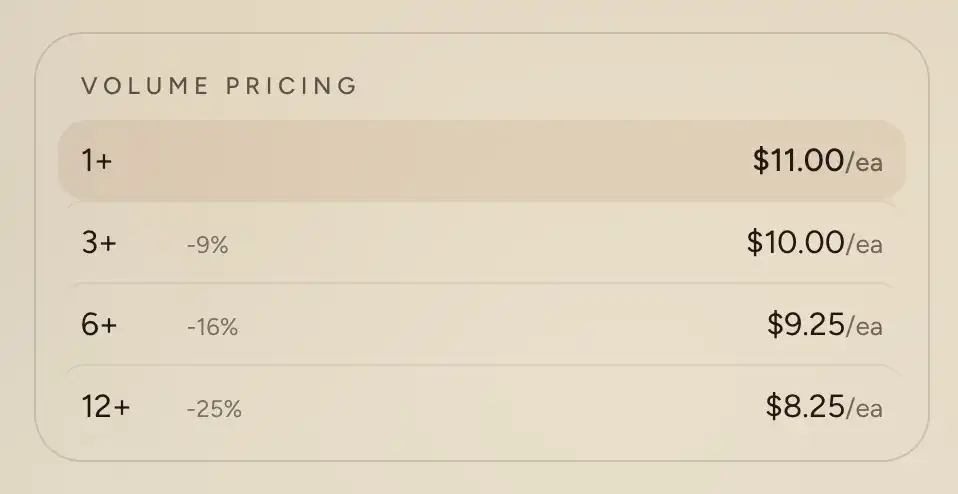
Volume pricing shows a customer a cheaper per-unit price as they buy more: 1+ at full price, 6+ for less, 12+ for less again. The theme displays these tiers on the product page and in the cart. They come from Shopify's B2B pricing, so they appear only for a signed-in company customer whose catalog has volume pricing for the product. A regular shopper sees nothing, which is expected.
Set the tiers in Shopify
The prices themselves are a Shopify feature, not a theme setting. You set them in the Shopify admin under Products, then Catalogs, on a B2B catalog: open Manage products and pricing and add the quantity breaks (a quantity and its price) per variant. Quantity rules (minimum, maximum, and increment) live in the same place. The theme reads whatever you set there. Volume pricing needs a Shopify plan that includes B2B.
The Volume pricing block
On the product page the tiers render in a Volume pricing block, inside the Product information section. the theme's product template ships with the block already in place, so most stores do not need to add it.
To add or move it: in the product template, open Product information, click Add block, and choose Volume pricing from the Products group. Drag it to sit where you want the tiers, usually near the price or the add to cart button.
The block has no content to fill in. The tiers, prices, and the active row all come from the catalog. Its only control is the standard Margin. See Common section settings.
Because the tiers are B2B only, the block is empty for you in a normal preview. In the theme editor it shows a sample set of tiers with a note, so you can see the layout and place the block while you work. Live, it fills with the real catalog prices for a signed-in company customer and stays hidden for everyone else.
In the cart
The cart drawer and cart page show the same tiers under each line item on their own, with the row for the current quantity marked. There is no block to add and nothing to configure: this appears automatically for B2B line items that have volume pricing.
Quantity selector
The Quantity selector block already follows the product's quantity rules, so the minimum, maximum, and step a customer can pick match what you set in the catalog. Volume pricing and quantity rules are separate settings in Shopify: you can use either on its own or both together.
Tips
- The active tier updates as the quantity in the cart changes, so a customer who already has six in the cart sees the 6+ price marked.
- If tiers do not show for a real B2B customer, check the catalog assigned to their company has volume pricing for that specific product and variant. The block only reflects what the catalog holds.