Storytelling presets
Brand ethos, Quote, and Highlights are three prebuilt layouts of the flexible Section. Each one arrives finished, with groups and content blocks already arranged, so your work is editing the words and images, not building the structure. They are presets, so every control on a plain Section applies once you want to adjust the design.
Add one
- In the theme editor, open Add section.
- Under the Storytelling group, pick Brand ethos, Quote, or Highlights.
- The layout appears with placeholder copy and empty image slots. Open the section's blocks in the editor sidebar to edit them.
To replace text, click a block (such as Eyebrow, Accent text, Rich text, Text, or Quote) and type your own. To add a picture, click an Image or Illustration block, or set a background on a group. The illustrations and signature marks are decorative and you can remove them.
Brand ethos
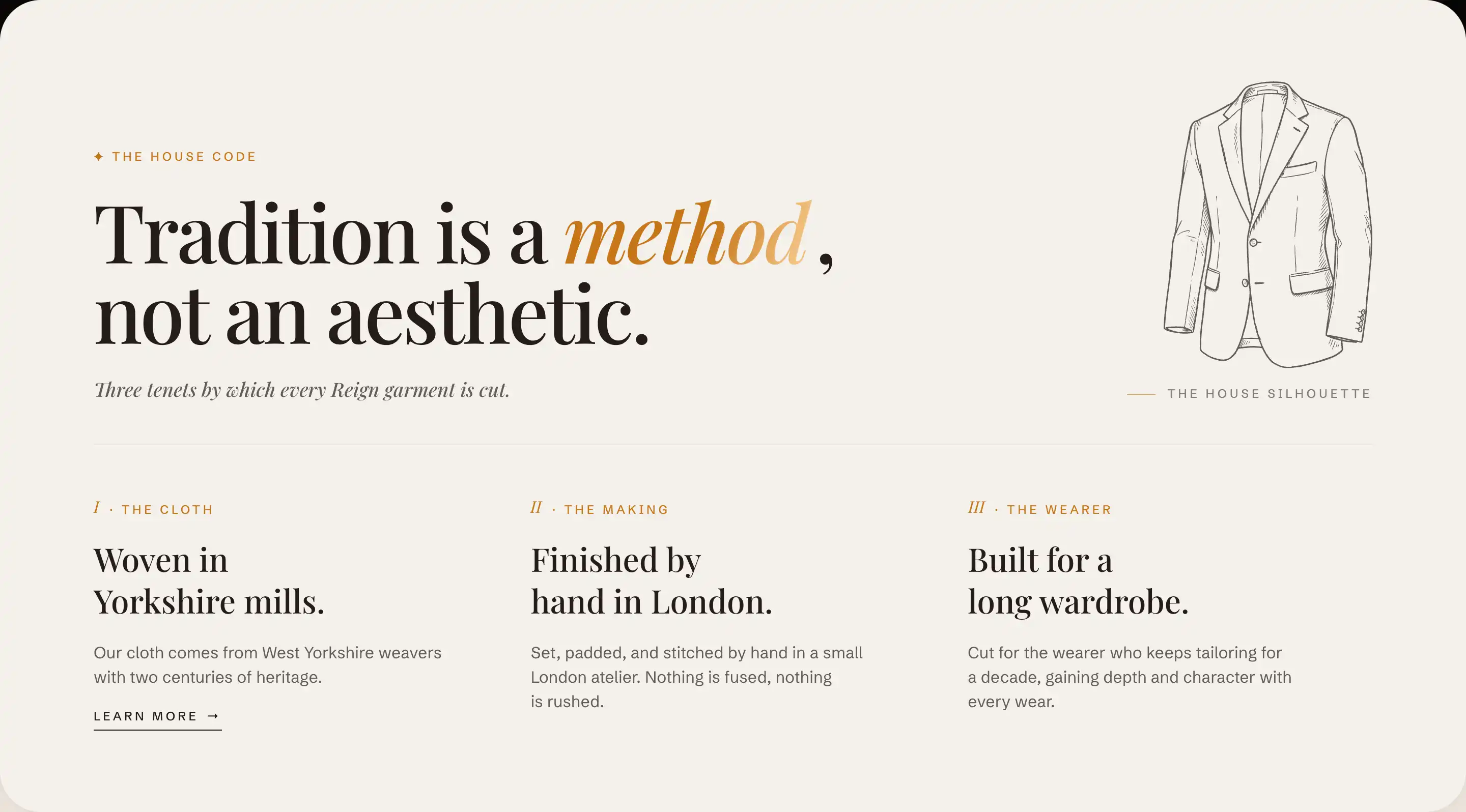
A wide statement of what your brand stands for. A short eyebrow and a large headline sit at the top, with a small illustration and caption to one side, then a divider, then three numbered columns (I, II, III) for your principles. Each column has an Eyebrow label, a Text title, a Rich text paragraph, and an optional Button.
What to edit:
- The headline and intro line at the top.
- The three column titles and paragraphs. The numerals (I, II, III) are Accent text blocks and the column labels (Feature, Benefit, Detail) are Eyebrow blocks you can rename.
- The side illustration and the "A featured piece" caption, or remove them.
Quote
A press or testimonial layout. A masthead Image (a publication logo, for example) sits at the top, then a dateline rule, then a large pull quote with a byline, paired with a signature illustration. Use it to feature a review, a quote, or a line that sums up your brand.
What to edit:
- The Quote block: your quotation. The decorative quote mark is part of the block.
- The byline Text: the author and publication, plus a Button linking to the full piece.
- The masthead Image and the dateline text ("Source · Date").
Highlights
Four promises in a row inside a bordered panel: a common pattern for quality, delivery, packaging, and support. A centered heading introduces the panel, and each of the four cells has an Illustration, an Eyebrow tag, a Text title, and a Text description. On phones the four cells stack.
What to edit:
- The heading and intro line above the panel.
- Each cell's tag, title, and description. Rewrite them for the four things you most want customers to know.
- Each cell's Illustration, or remove it.
Settings
These presets carry no settings of their own beyond the standard Section controls. Adjust the layout, background, spacing, and color the same way you would on any Section: see Common section settings for the Color, Layout, Size, Appearance, Border, Padding, Margin, and Visibility groups. The arrangement inside each preset comes from group blocks (a Proportional group, Group, or Styled group), which have their own copies of those controls.
Tips
- A preset is a starting point. You can add, reorder, or remove any block inside it, and every cell or column is a separate block in the sidebar.
- To add or drop a Highlights cell, duplicate or delete one of the four Group blocks inside the panel. The remaining cells re-space to fill the row.
- The illustrations are decorative defaults. Swap them for your own under each Illustration block, or remove them for a cleaner, text-only look.