Search page and search overlay
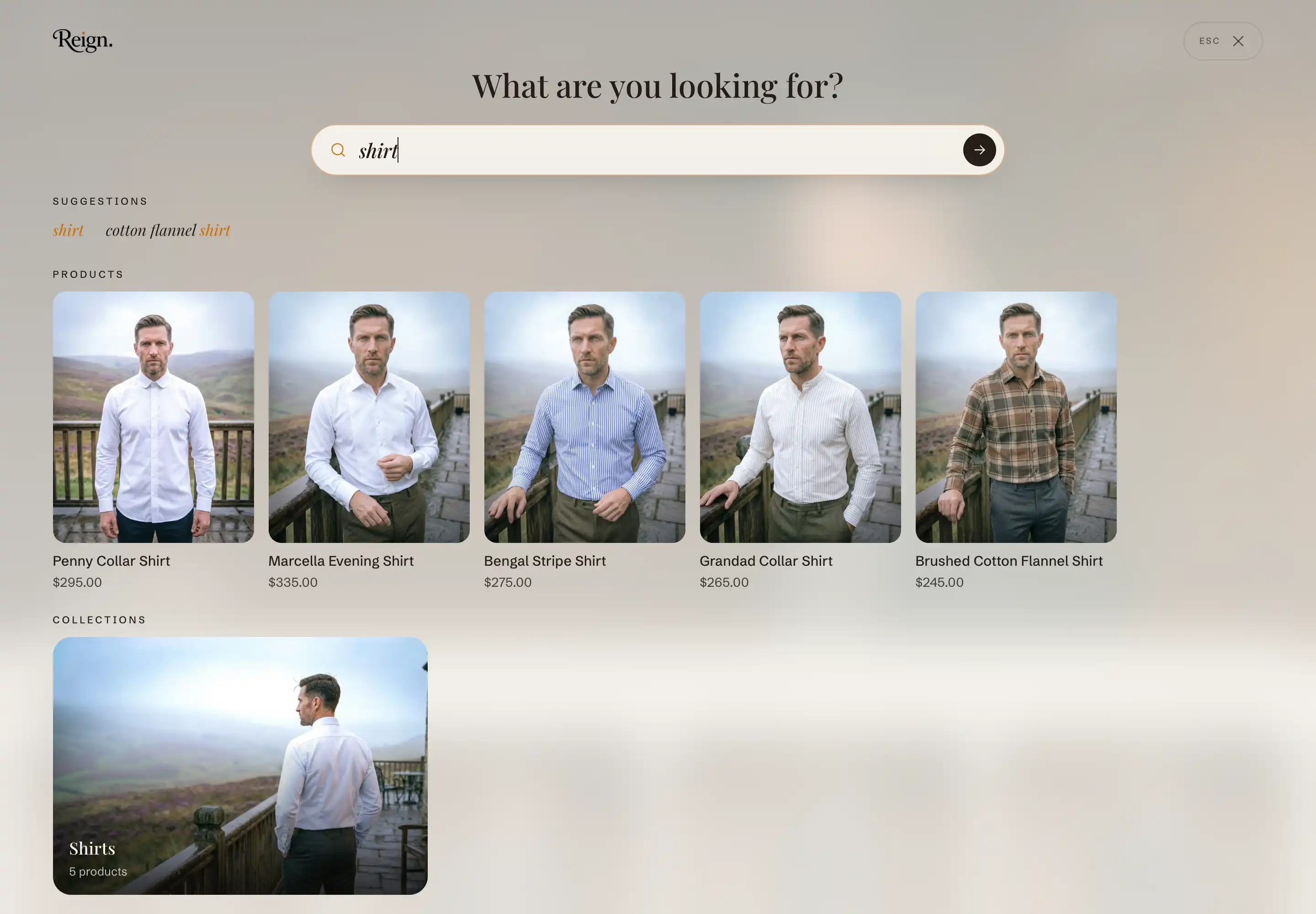
Reign handles search in two places. The Search overlay opens when a shopper clicks the search icon in the header and shows live suggestions as they type. The Search results section is the full page they reach after submitting a query, at /search. You edit each one in a different place in the theme editor.
Edit the search results page
This section fills the search template. You cannot add or remove it, and there is one per store.
- In the theme editor, open the template selector at the top of the screen.
- Choose Search under the Templates list.
- Click the Search results section in the sidebar to open its settings.
Results are grouped into tabs (products, articles, pages) when more than one type matches. Product results use Reign's product card, so the card's own blocks (image, title, price, label, rating, swatches) control how each result looks, the same as on a collection page.
Results
- Products per page: how many products load before pagination starts. Range 8 to 48, in steps of 4.
- Desktop filter layout: where filters appear on desktop. Drawer opens filters in a panel from a button. Sidebar keeps them in a column beside the results. On mobile, filters always use the drawer. Filters themselves come from the Shopify Search & Discovery app, not from this section.
Empty state
These control what a shopper sees on the search page before there is a query.
- Show recent searches: shows the shopper their own recent searches, kept on their device.
- Show popular collections: shows a row of collection cards drawn from your store's collections.
- Maximum collections to show: caps how many collection cards appear (2 to 6). Available when Show popular collections is on.
This section also uses the standard Color, Padding, Margin, and Visibility controls. See Common section settings.
Edit the search overlay
The overlay is part of Reign's Overlays group, which loads on every page (alongside the cart drawer), so it is not in the Templates list and you do not add it from Add section. It opens over the page when a shopper clicks the search icon in the header.
- In the theme editor, open any page.
- In the sidebar, expand the Overlays group.
- Click Search overlay to open its settings.
Before a shopper types, the overlay can show trending terms, recent searches, and popular collections. Once they start typing, those are replaced with live suggestions.
Empty state
This is what shoppers see in the overlay before they type.
- Trending searches: suggested search terms shown as tappable tags. Enter one term per line. Leave it blank to hide the trending section. These are static terms you type, not automatic.
- Show recent searches: shows the shopper their own recent searches, kept on their device.
- Show popular collections: shows collection cards in the overlay.
- Collections: pick up to 6 collections to feature as popular collections. Leave it empty to use your first collections.
- Maximum collections to show: caps how many collection cards appear (2 to 6). This applies when you have not picked a specific list in Collections, and only when Show popular collections is on.
Search input
- Placeholder text: the grey hint text inside the search field before the shopper types.
This section also uses the standard Color controls. See Common section settings.
No results fallback
When the overlay's live suggestions find no matches, Reign can show products from a fallback collection so the shopper still has something to browse. This is one store-wide setting (No results fallback collection) in Theme settings: see Search settings.
Tips
- Filters on the results page are driven by the Shopify Search & Discovery app. If you see no filter button, you have no filters set up there. Desktop filter layout only changes how existing filters display.
- The recent searches list lives on each shopper's device, so it looks empty in a fresh preview. That is expected.
- The overlay and the results page each carry their own Color scheme and their own popular collection settings. Set both if you want a consistent look from the overlay through to the full results page.