Related, complementary, and recently viewed products
Reign offers three ways to show product recommendations. Related products and Recently viewed are sections. Complementary products is a block you add inside the product page. Each is filled by Shopify or the shopper's own activity, so none has a manual product picker.
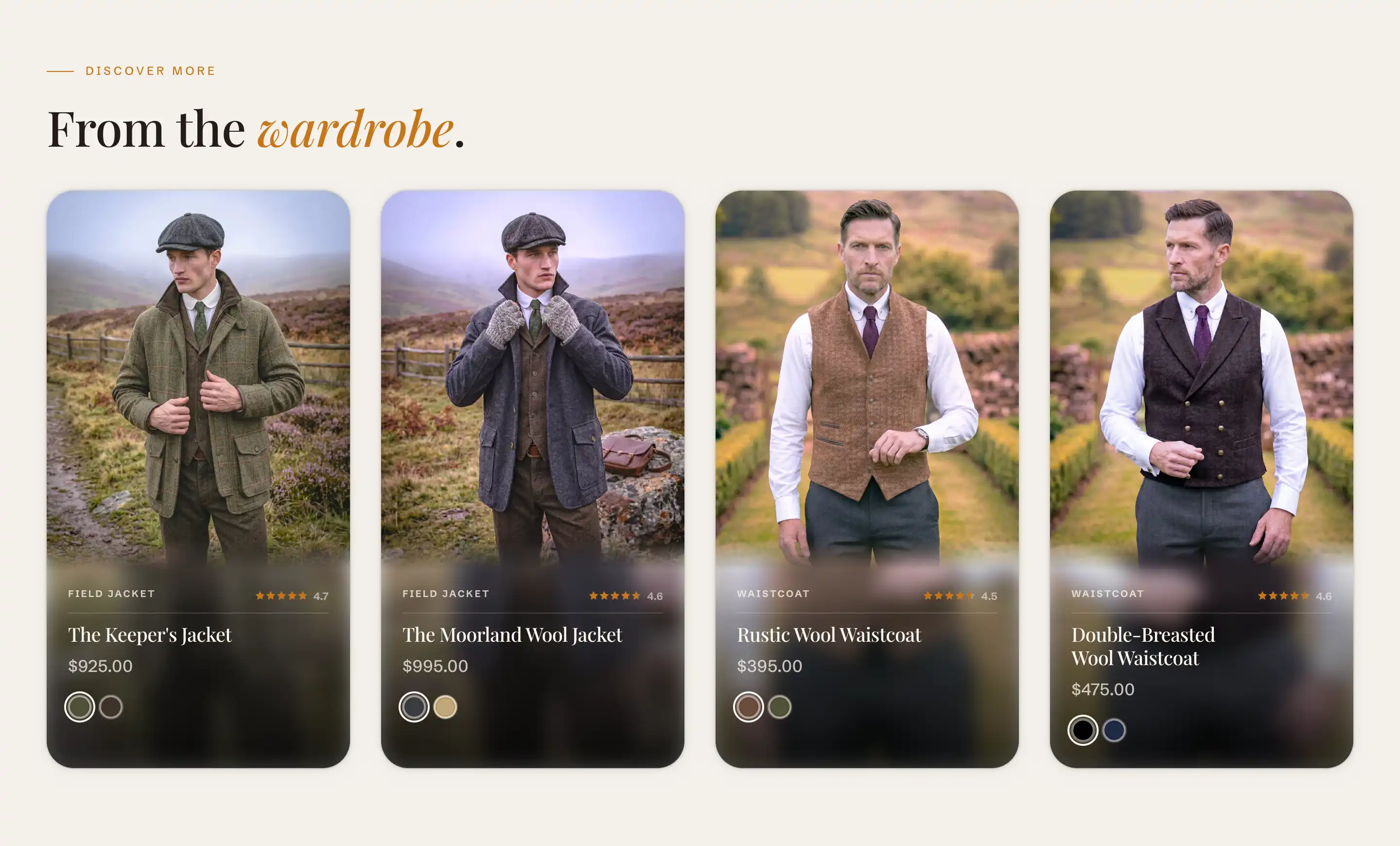
Related products
A section that shows items Shopify recommends for the product on the page, based on order and product data. It works only on the product template, and appears under the Products group when you click Add section.
- In the theme editor, open a product template.
- In the section list, click Add section.
- Under Products, choose Related products.
- Drag the section to where you want it on the page.
The recommendations come from Shopify, so there is no list to fill. An info note in the section reads: "Dynamic recommendations use order and product information to change and improve over time." A product with no recommendations yet shows nothing, which is normal for new products and stores with little order history.
The eyebrow, heading, and product cards are blocks inside the section. Select them in the section's blocks to edit the heading text or change what each card shows.
Settings
- Products to show: the maximum number of products in the row, from 2 to 12. Default is 4. The row becomes a swipeable slider when there are more products than fit.
This section also uses the standard Color, Padding, Margin, and Visibility controls. See Common section settings.
Complementary products
A block that shows products that pair with the one on the page, for example an accessory or a refill. It reads from Shopify's complementary recommendations, which you set per product in the Search & Discovery app. Add it inside your product page where you want the suggestions to appear.
- In the theme editor, open a product template.
- Select the product section, then add a block.
- Choose Complementary products.
- Drag the block to where you want it in the layout.
The block is connected to the parent product, so it always reflects the product being viewed. It shows products only when that product has complementary items set in Search & Discovery. With none set, the block stays empty.
Settings
- Heading: the label above the list. Default is "Pairs well with". Clear it to hide the label.
- Products to show: the maximum number of suggestions, from 1 to 6. Default is 3.
This block also uses the standard Margin controls. See Common section settings.
Recently viewed
A section that shows products the current shopper has already looked at, pulled from their own browser history. It works on the product, collection, and home page templates, and appears under the Products group when you click Add section.
- In the theme editor, open a product, collection, or home page template.
- In the section list, click Add section.
- Under Products, choose Recently viewed.
- Drag the section to where you want it on the page.
The list is per shopper and comes from their browsing history, so a first-time visitor with no history sees nothing. The section stays hidden until there is something to show, which means it can look empty in a preview even when it works for real visitors.
Settings
- Products to show: the maximum number of products in the row, from 2 to 12. Default is 6. The row becomes a swipeable slider when there are more products than fit.
This section also uses the standard Color, Padding, Margin, and Visibility controls. See Common section settings.
Tips
- To set complementary products, open the Search & Discovery app in your Shopify admin and add complementary items on each product. The block reads from there.
- Recently viewed and Complementary products both depend on data that may be absent in a preview (browser history, configured pairings). An empty section in the editor does not mean it is broken.
- Use Products to show to keep a recommendation row to a single line on desktop. A lower number reads as a tighter, curated set.