Product media gallery and lightbox
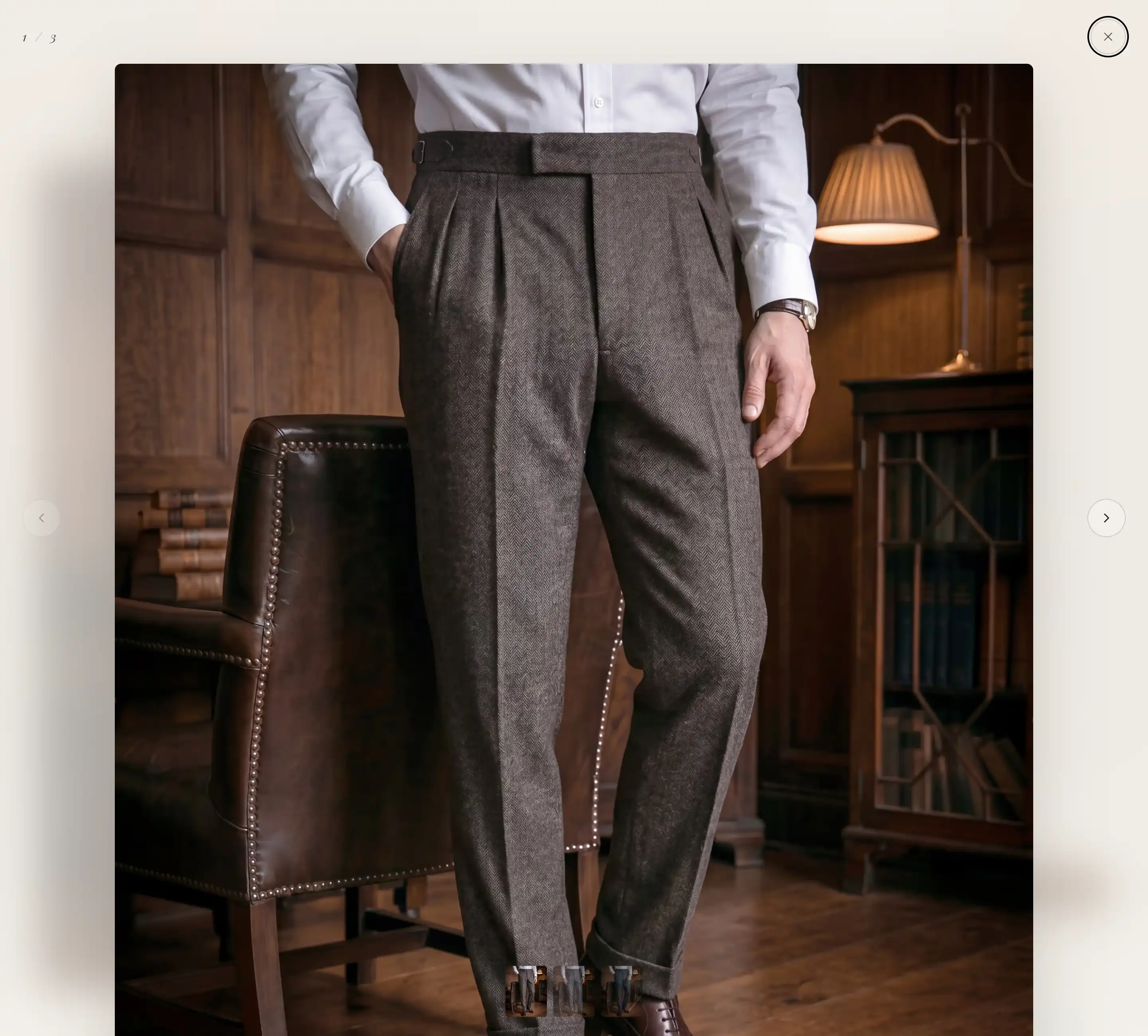
The Product media gallery is the block that shows a product's images, videos, and 3D models on the product page. It sits inside the Product information section and is connected to the parent product, so it pulls each product's own media automatically. It also drives the full-screen lightbox that opens when a shopper clicks the main image.
Find the gallery settings
- In the theme editor, open a product page (switch the editor view to a product).
- In the section list, select Product information.
- Under it, select Product media gallery to open its settings.
At the top you see the note Connected to the parent product. The block always shows the media of the product being viewed, so there is nothing to assign. For how blocks sit inside a section, see Sections, blocks, and groups.
Settings
Desktop layout
Desktop layout sets how the media is arranged on larger screens. Its note reads Mobile stays a slider., so this choice does not change phones.
- Slider: one image at a time with arrows and dots.
- Thumbnails left: the slider with a column of thumbnails down the left side.
- Thumbnails below: the slider with a row of thumbnails underneath.
- Stacked: every image stacked in a single column, no slider.
- Mosaic: the images laid out in a tiled grid.
Mobile navigation
Mobile navigation sets how a shopper moves between images on a phone, where the gallery is always a slider.
- Dots: small markers under the image.
- Thumbnails: a row of thumbnail images under the main one.
Open lightbox on click
Open lightbox on click lets a shopper click the main image to open a full-screen view at a larger size. Turn it off if you do not want the enlarged view.
Media fit
Media fit sets how each image fills its frame.
- Crop: the image fills the frame and any overflow is trimmed, so every image reads at one size. Best when your product photos share a shape.
- Adapt: the whole image shows with no trimming, which can leave space around photos of different shapes.
Video
These settings apply to product videos in the gallery.
- Enable autoplay: plays videos on their own. Its note reads Muted, plays inline., so autoplay videos always start without sound. With it on, Hide controls appears, which removes the play, pause, and volume controls.
- Enable video looping: restarts each video when it reaches the end.
Variant filter
- Group media by variant: shows only the images that match the selected variant, so choosing a color or size narrows the gallery to that variant's photos. Its note reads Requires alt-text tags on each image, like @color:Sky Blue. Add a tag in that format to each image's alt text in the product admin (the tag names the option and its value). The match ignores case, and images with no tag always stay visible. This appears only on products with more than one variant.
This block also uses the standard Visibility control. See Common section settings.
Tips
- 3D models need no setting. If a product has a 3D model in its media, the gallery loads the viewer for it on its own.
- For Group media by variant, leave general shots untagged so they stay visible for every variant. If the photos do not switch with the selection, check the spelling and case of the tag against the product's option names and values.
- Crop gives the cleanest gallery when all your photos share a shape. Switch to Adapt if cropping cuts off part of a product.