Product features and status badges
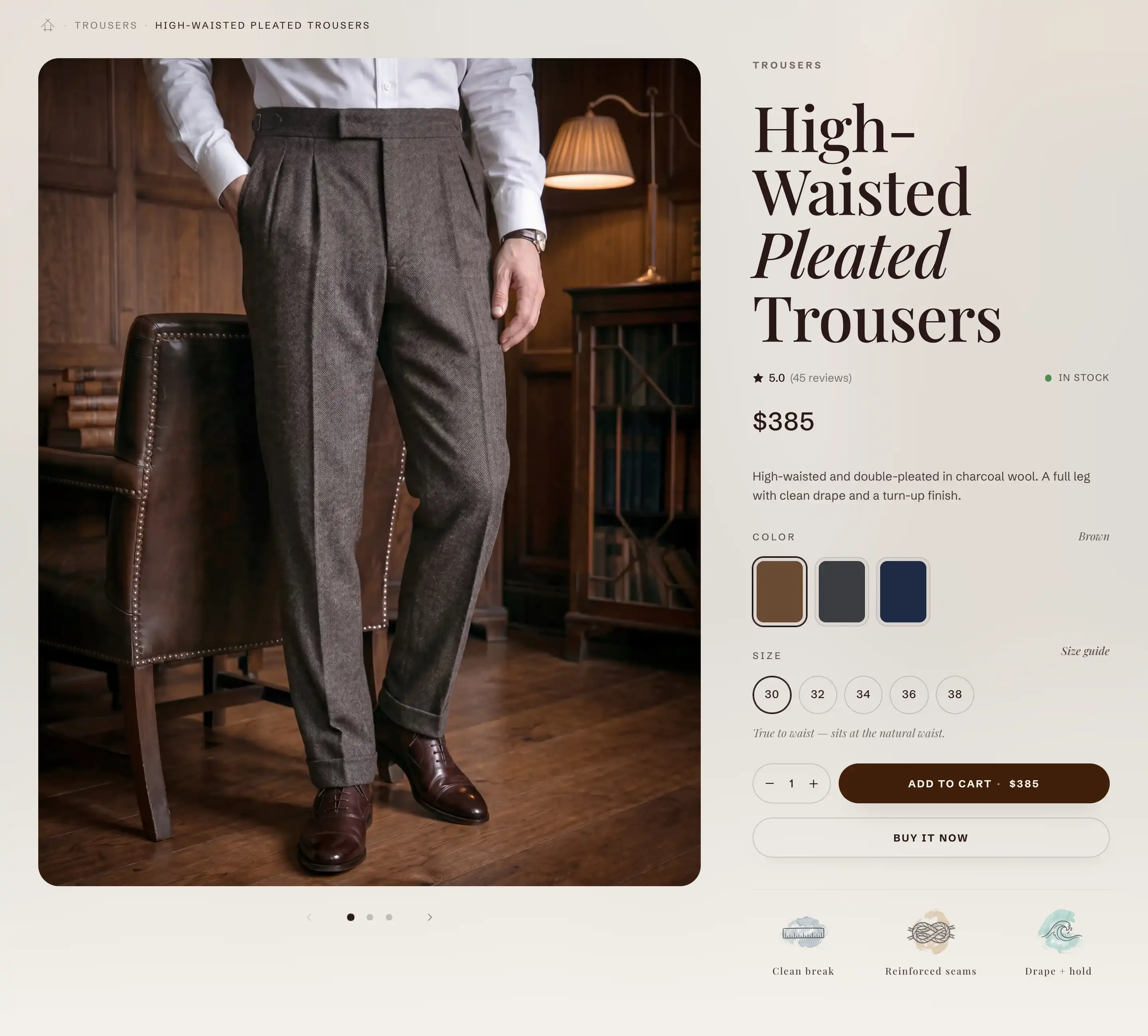
Reign gives you three blocks for the product page that show trust at a glance: a list of selling points with icons, automatic status badges, and a live stock indicator. You add each one inside the product section that holds the title, price, and buy button. For how blocks fit inside sections, see Sections, blocks, and groups.
All three blocks appear in the Products group of the block picker:
- Product features: a short list of selling points, each with a symbol and a label.
- Status badges: automatic Sale and Sold out flags based on the product's state.
- Inventory status: a stock pill that reads live inventory and shows in stock, low stock, out of stock, or pre-order.
Add a block to the product page
- In the theme editor, open a product page (use the top page selector to switch to Products).
- In the section's blocks, find the product section that holds the title, price, and buy button.
- Click Add block inside that section.
- Pick the block you want from the Products group: Product features, Status badges, or Inventory status.
- Drag the block to the position you want in the column.
Product features
A list of selling points, each a small symbol plus a line of text. The block holds one or more Feature child blocks. When you add the block it ships with three placeholder features (Add a feature, Add a benefit, and Add a detail) for you to rewrite.
Block settings
- Layout: how the features sit. Stacked lists them one per line. Inline flows them in a row.
- Show divider: adds a separating line between the items. On by default.
This block also uses the standard Margin control. See Common section settings.
Each Feature
Click a Feature child block to edit it, or click Add block inside Product features to add another.
- Symbol: the icon shown next to the label. The list is grouped by theme (for example Nature & botanical, Craft & making, Quality & awards, Trust & assurance, Gifting & occasion) so you can pick one that fits the point you are making.
- Label: the text of the feature. Defaults to Add a detail.
- Link: optional. Turns the whole feature row into a link to the page you set (a size guide, a shipping policy, a materials page).
Status badges
Small flags that appear on the product page automatically. You do not type the text: each badge shows only when the product is in that state. If none apply, the block shows nothing.
For merchant set badges driven by a product metafield, and for the store wide badge style, see Product badges in Theme settings. The Status badges block here is separate: it reads the product's real state instead of a metafield.
Block settings
- Show "Sale" badge: shows a sale flag when the variant has a compare-at price higher than its price. The badge includes the discount percentage when there is one. On by default.
- Show "Sold out" badge: shows a sold-out flag when the product is unavailable. On by default.
This block also uses the standard Margin control. See Common section settings.
Inventory status
A single stock pill that reads live inventory for the selected variant and shows one of four states. The state and text change as the shopper switches variants.
The block notes in the editor that it shows live stock when inventory tracking is enabled in Shopify admin. For variants without tracking, it falls back to a plain in-stock or out-of-stock reading based on availability.
Block settings
- Low stock threshold: the count at or below which the pill switches to the low-stock state. Set it to 0 to turn the low-stock state off. Ranges from 0 to 50, default 5.
- Status dot: the small indicator dot before the text. Pulsing animates it, Static keeps it still, None hides it.
In stock
- Label: the text shown when stock is healthy. Defaults to In stock.
Low stock
- Label: the text shown when stock is at or below your threshold. Use
[stock]anywhere in the text to insert the remaining quantity. Defaults to Low stock · [stock] left.
Out of stock
- Label: the text shown when the variant is unavailable. Defaults to Out of stock.
Pre-order
- Label: the text shown when the variant is out of stock but set to keep selling (continue selling when out of stock, in the variant's inventory settings). Defaults to Pre-order.
This block also uses the standard Margin control. See Common section settings.
Tips
- Status badges and Inventory status are driven by the product's real state, so leave them in place across your catalog. A product with no sale and no stock issue shows no badge at all, which is expected.
- For the low-stock count to appear, the variant must use Shopify inventory tracking. Without tracking, the pill can only say in stock or out of stock, and Low stock threshold has no effect.
- A Feature row only becomes clickable when you fill in its Link. Leave Link empty for a plain, non-clickable point.