Password page
The password page is what visitors see while your store is password protected, before launch or during a private sale. Reign builds it with one Password section that loads only on the Password template, so you will not find it under Add section on other pages.
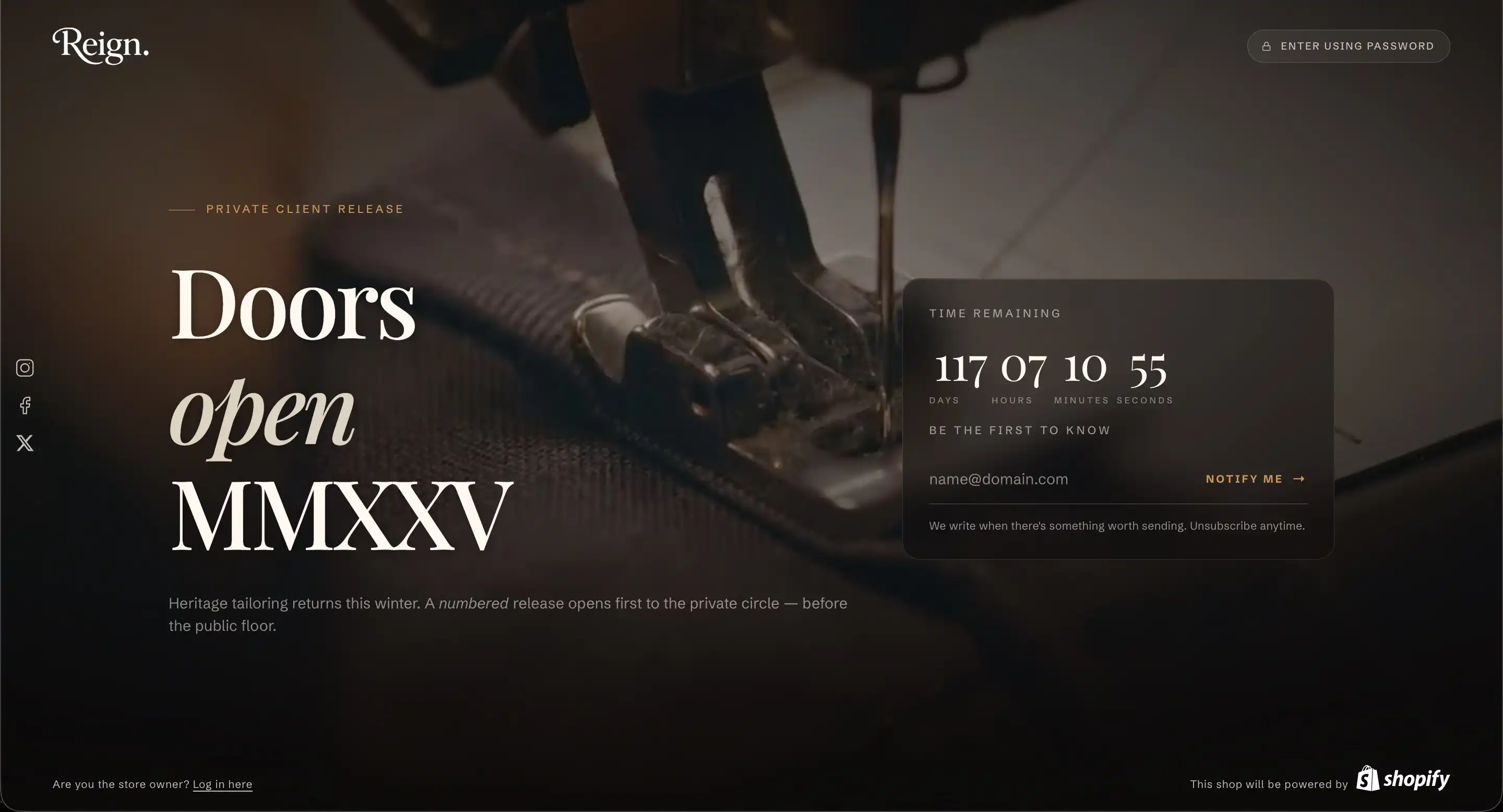
Open the password page editor
- In your Shopify admin, go to Online store then Themes.
- On the Reign theme, click Customize.
- In the page selector at the top of the editor, choose Password.
- The Password section loads with its blocks already in place.
To turn password protection on or off, go to Online store then Preferences and use the Password protection controls. The editor styles the page. It does not switch protection on.
Section settings
Select the Password section to reach these. They sit under the Appearance heading.
- Color scheme: the set of background, text, and accent colors used for the page. Pick a scheme that reads well over your background.
- Background: what fills the page behind the content. None uses the scheme background. Image reveals a Background image picker. Video reveals a Background video picker.
- Background image: the image shown when Background is Image. It covers the full page and loads at high priority.
- Background video: the video shown when Background is Video. It plays muted and on loop. Use an MP4 file. A still preview frame, if your video has one, shows while the video loads.
When you set a background image or video, Reign lays a dark gradient and a soft grain over it so the text stays readable.
Blocks
The Password section ships with a fixed frame: a built in header, footer, and password popup. Between them sits the main area, where you add and rearrange blocks the same way as any other Reign section.
Password header
The bar at the top of the page, with your logo and the password entry button.
- Use inverted logo: show your inverted logo instead of the standard one. This appears only when both a logo and an inverted logo are set in Theme settings under Logo.
- Logo height: the height of the logo in pixels.
- Trigger label (under the Password entry heading): the text on the button that opens the password popup.
Password popup
The dialog that opens when a visitor clicks the password entry button. It holds the password field. A wrong entry reopens this same dialog with the error shown inside it.
- Eyebrow: the small line of text above the heading.
- Heading: the dialog title. You can italicize part of it for emphasis.
- Field label: the accessible label for the password field. Screen readers read it and it stays hidden on screen.
- Placeholder: the hint text inside the empty password field.
- Submit label: the text on the button that submits the password.
- Error message: the line shown when a visitor enters the wrong password.
Below the field, the popup also shows the store owner login link. If you filled in a message under Online store then Preferences then Password protection, it appears inside the popup too.
Password footer
The bar at the bottom of the page.
- Show socials: show your social icons. They pull from your theme social settings, so an icon appears only for a platform you have filled in there.
- Show "Log in" link: show the store owner login link in the footer.
- Show "Powered by Shopify" line: show the "Powered by Shopify" credit.
Main content
The center of the page is built from movable blocks. The default layout pairs a text column with a panel, arranged in a Styled group:
- Text column: an eyebrow, a large title, and a subtitle.
- Panel: a "Time remaining" label, a countdown timer, a "Be the first to know" heading, and an email signup form.
Select any of these blocks to edit its text. Reorder them, remove them, or add other blocks to shape your own coming soon layout.
This section also uses the standard Color controls (its Color scheme lives under Appearance here). See Common section settings.
Tips
- If you do not see the Password section, confirm the editor is on the Password template using the page selector. The section does not show on the home page or other pages.
- The password page reaches visitors only while password protection is on in Online store then Preferences. Styling the page here does not enable protection.
- For a Video background, supply an MP4 file. Reign drops adaptive streaming sources to keep the looping background sharp, so a video without an MP4 source will not play.
- The countdown in the panel has its own end date and time. Open the countdown block to set when it should reach zero.