Image compare
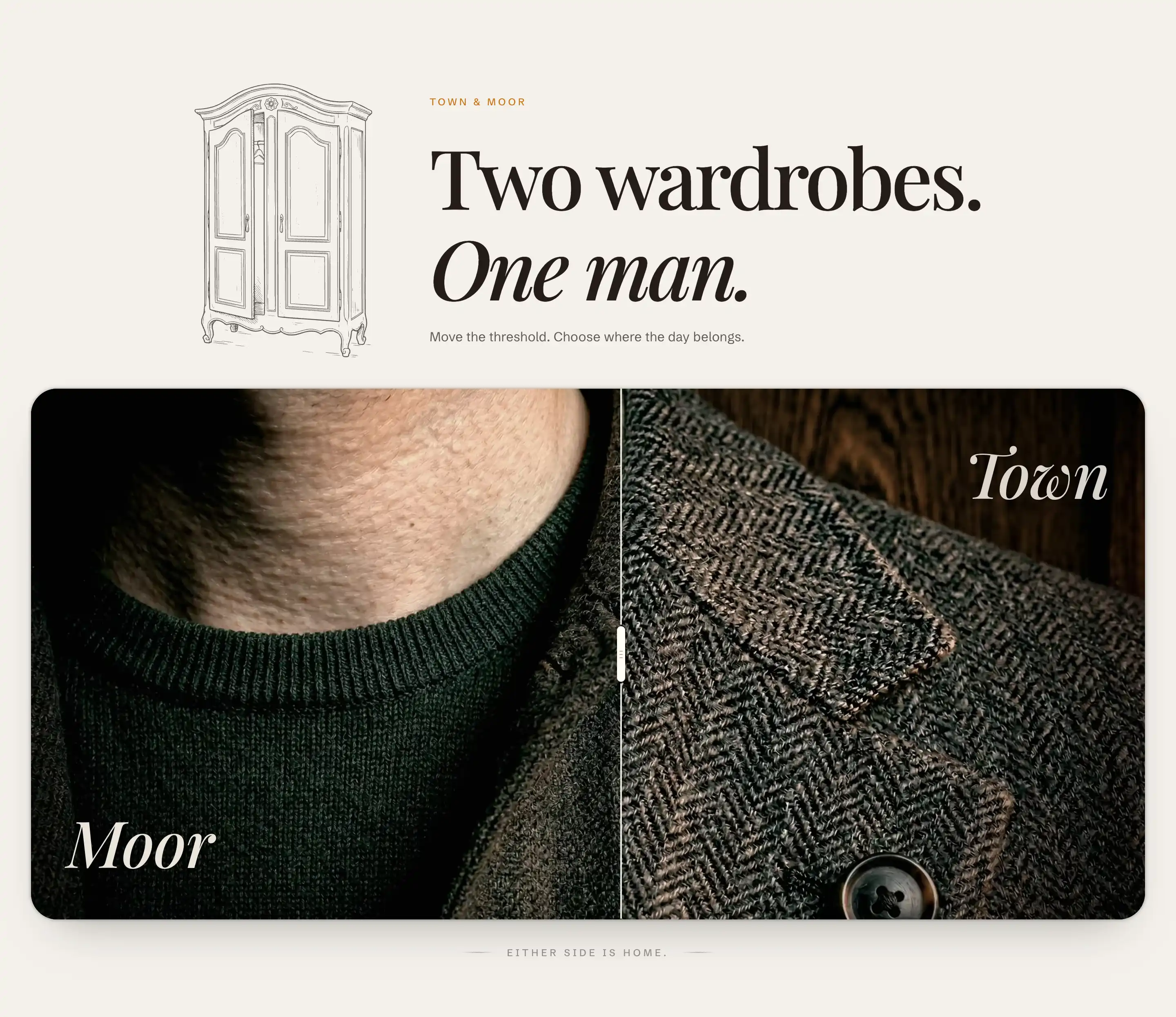
Image compare shows two images stacked in one frame with a slider the shopper drags to wipe between them. Use it for a before and after: a product worn versus unworn, a room before and after a restyle, an edit versus the original. Add it from Add section under Storytelling.
Add the section
- In the theme editor, open the page where you want the comparison.
- Click Add section and choose Image compare from the Storytelling group.
- The section drops in with placeholder images. Set your two images in the settings below.
The section starts with a Header content slot above the frame, holding an illustration, an eyebrow, a heading, and a short paragraph. Edit or remove those blocks, or add your own, the same way you edit any block. See Sections, blocks, and groups.
Left side
The left side is the image the shopper sees first, before they move the slider.
- Image: the picture for the left side. When empty, the section shows a placeholder.
- Label: a short caption pinned to the left of the frame, for example Before. Leave it empty to hide it.
Right side
The right side is revealed as the slider moves toward the start. The editor notes this side is visible when the slider is at the start.
- Image: the picture for the right side. When empty, the section shows a placeholder.
- Label: a short caption pinned to the right of the frame, for example After. Leave it empty to hide it.
Slider
- Starting position: where the slider sits when the section loads, from 0 to 100 percent. The default is 53, near the middle. A lower value reveals more of the right image at first, a higher value more of the left.
- Footnote: a short line of text under the frame, centered between two rules. Leave it empty to hide it.
This section also uses the standard Color, Padding, Margin, and Visibility controls. See Common section settings.
Tips
- Use two images shot at the same size, angle, and crop. The slider lines them up edge to edge, so any shift in framing shows as the shopper drags.
- Set descriptive alt text on each image in the file picker. When an image has no alt text, the section uses its Label as the alt text for accessibility.
- Keep labels to one or two words. They sit inside the frame, so long captions crowd the image.