Image banner
Image banner is a heading and short text centered over a background image, the full width of the page. It is a preset of Reign's flexible Section, so once you add it you have the section's full set of controls. It lives under the Storytelling group in Add section.
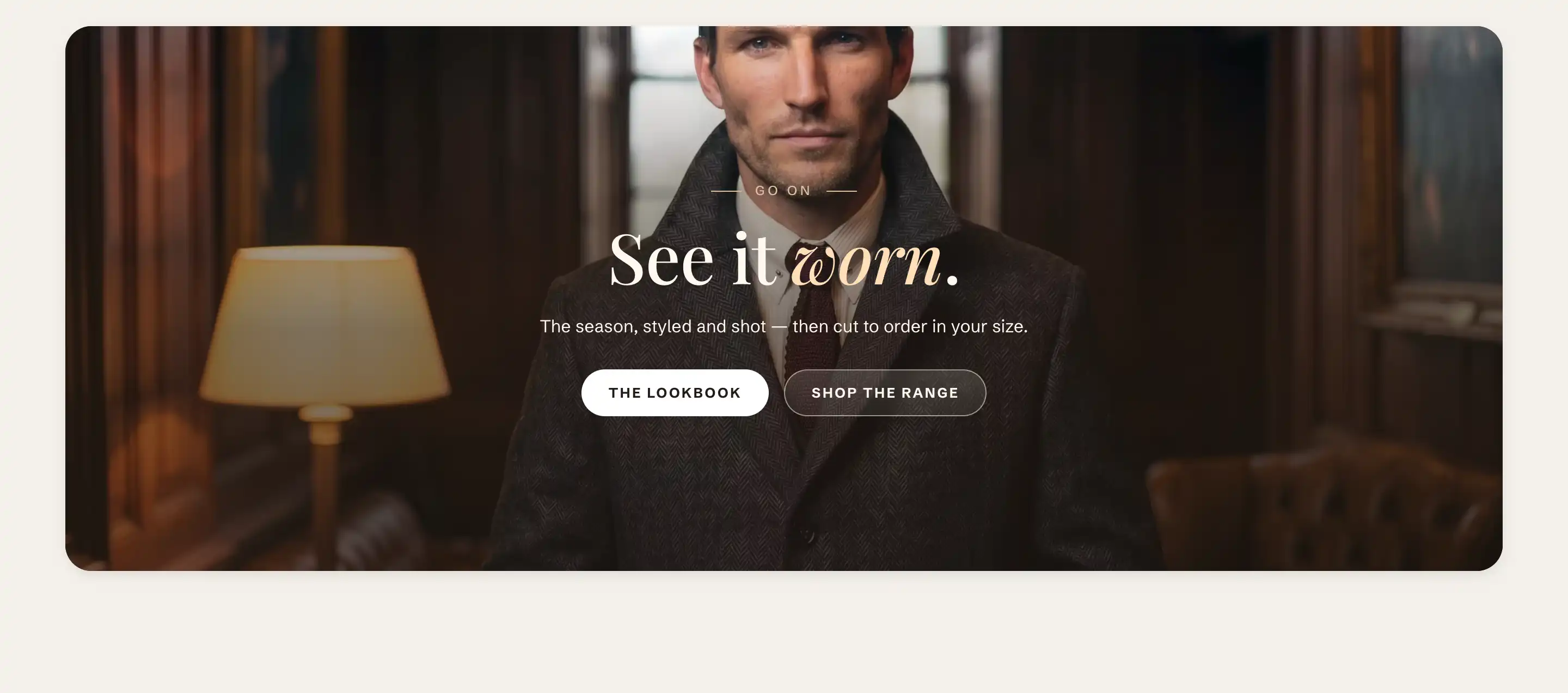
Add the section
- In the theme editor, open the page where you want the banner.
- Click Add section and open the Storytelling group.
- Choose Image banner.
It starts with an eyebrow, a heading, and a caption over an empty background. Add your image and edit the text.
Set the background image
The image is the section's background, set under Appearance.
- Select the section and open Appearance.
- Set Background to Image.
- Pick your Image, and a Mobile image if you want a different crop on phones.
A dark Overlay gradient is already on so the text stays readable. Adjust it under Appearance if your image is light or dark.
Edit the content
The banner ships with three blocks, stacked and centered. Select each one in the block list to edit it:
- An Eyebrow: the small label above the heading.
- A heading: the large line, built from an Accent text block so you can italicize part of it for an accent color.
- A Rich text caption: the supporting line below the heading.
Add a Button block if you want a call to action, or remove any block you do not need.
Size and height
By default the banner ships at 70% of the screen height on desktop and 60% on phones. Change this under Size with Minimum height. Set Width to Page if you want it to match your content width instead of spanning the screen.
Common settings
Image banner uses the standard Layout, Size, Appearance, Border, Color, Padding, Margin, and Visibility controls. See Common section settings.
Tips
- Pick an image with room for text. A busy center makes the heading hard to read, even with the overlay.
- Keep the heading to one line or two. A long heading competes with the image and wraps awkwardly on phones.
- For two banners side by side, use the Split banners preset instead. For a banner with the header sitting over it, see the Hero slideshow.