Gift card recipient
The Gift card recipient block adds the form where a shopper enters recipient details when buying a gift card: an email, an optional name and message, and a send date. The form shows only on gift card products. On every other product the block renders nothing, so you can leave it on a shared product template without it appearing on physical items.
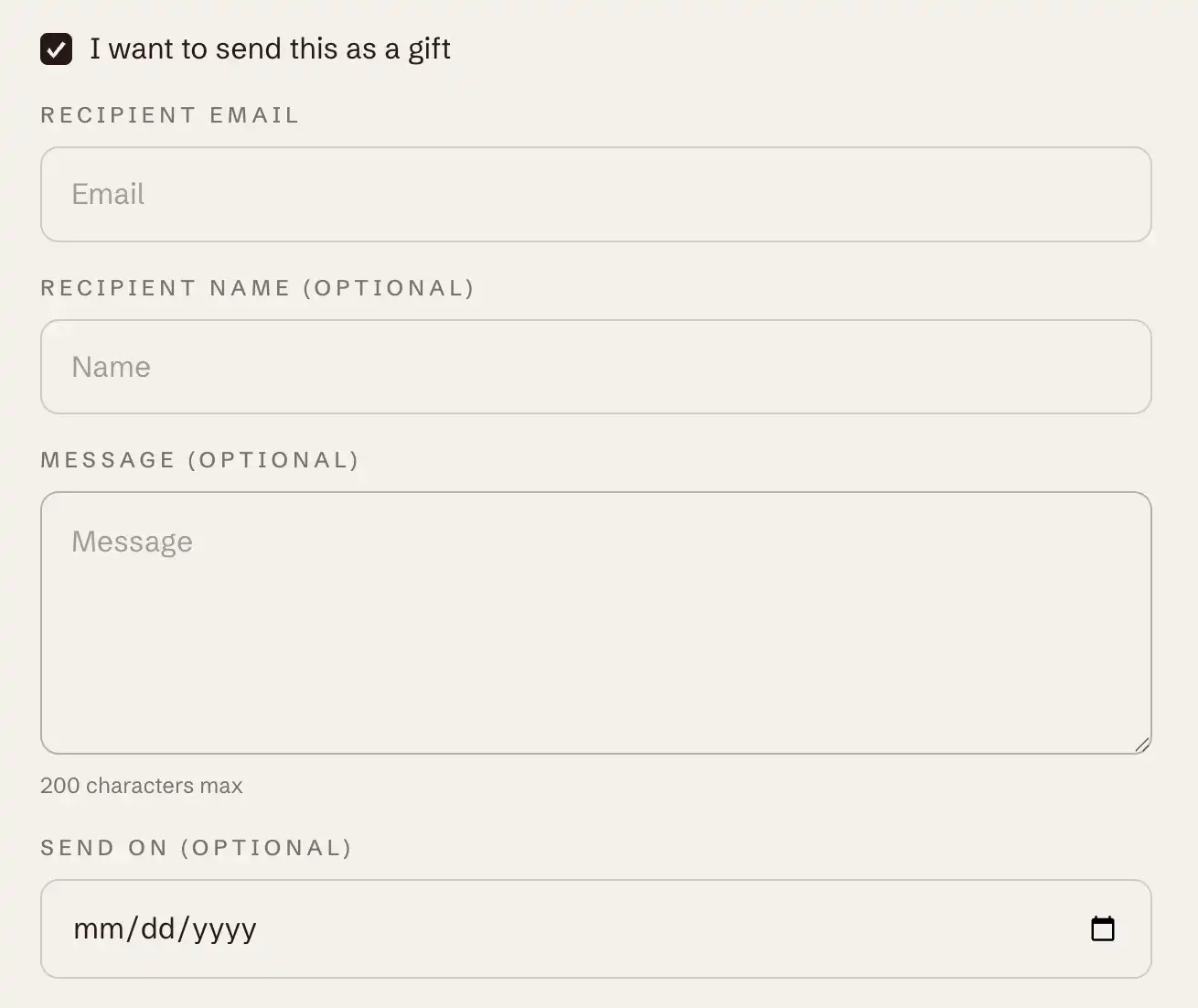
Add the block
- In the theme editor, open the product template you use for gift cards (or your default product template).
- In the Product information section's blocks, click Add block.
- Choose Gift card recipient from the Products group.
- Drag it into the position you want, above or below the buy button row.
- Save.
The block carries a note in the editor that reads "Appears only on gift card products." The recipient fields and labels come from Shopify's gift card recipient feature and your store language, so there is nothing to fill in here.
Settings
This block uses only the standard Margin controls, the space above and below it on the product page. See Common section settings.
Tips
- If you do not sell gift cards, you do not need this block. Adding it to a regular product has no effect, since it shows only on gift card products.
- Place the block above the quantity and buy button row. It spans the full width there, which gives the recipient fields more room than they would have squeezed into the buy area.
- To preview the form, open a gift card product in the editor preview. On any other product the block stays empty, which is expected.
- The cart discount code field is a separate feature, set in Cart settings under the Cart panel.