Filtering and sorting
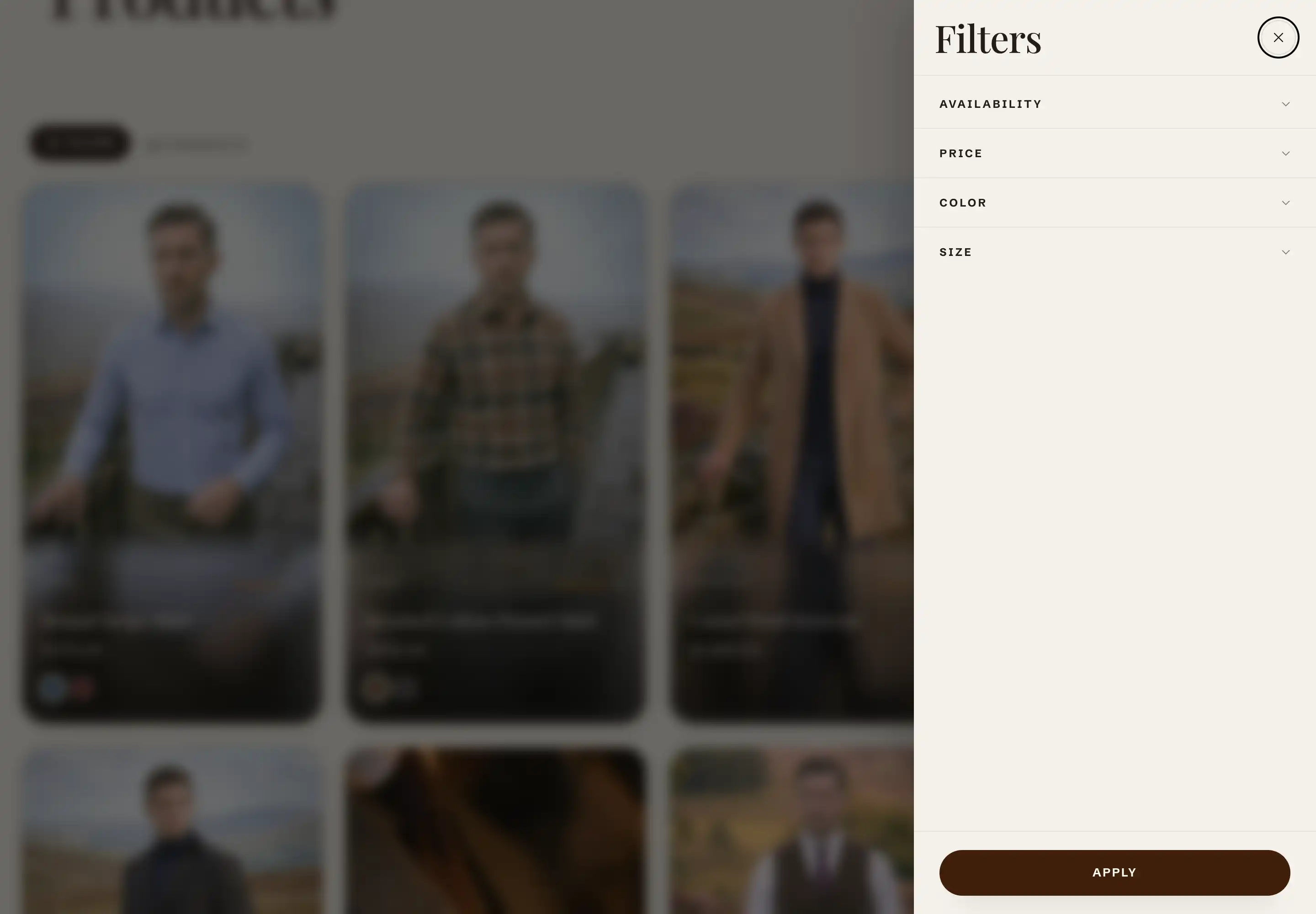
Filtering and sorting let shoppers narrow a collection and reorder the results. In Reign these controls live in the Collection product grid section, the main section of the collection template. The filter options themselves come from Shopify's free Search & Discovery app, not from the theme. The theme decides whether the controls appear and how the filter panel is laid out.
Where to find it
- In the Shopify admin, open Online Store > Themes and click Customize on your Reign theme.
- Open the page selector in the top bar and choose a collection page.
- In the section list, click Collection product grid.
- Open the Filters and sort group to reach the controls below.
Where the filters come from
Reign reads whatever filters you set up in the Search & Discovery app and renders them on the collection page. The theme does not define which filters exist or what values they hold.
- Install Shopify Search & Discovery from the Shopify App Store. It is free.
- In the app, open Filters and add the filters you want (for example product type, color, price, availability).
- In the theme editor, make sure Enable filtering is on.
With no filters set up in the app, the filter control has nothing to show. Sorting is separate: it works without the app, using the collection's built-in sort options.
Filters and sort
These settings sit under the Filters and sort heading.
- Enable filtering: shows the filter control and the applied-filter chips. Turn it off to hide filtering even when Search & Discovery has filters set up. The setting links to Shopify's guide for customizing filters in the app.
- Enable sorting: shows the Sort by control so shoppers can reorder the grid (for example by price or newest). The options come from Shopify's standard collection sort list, which you cannot rename or reorder in the theme.
- Expand filter groups by default: opens every filter group when the panel loads, instead of showing them collapsed. Available when Enable filtering is on. Use it for short filter lists. Leave it off when you have many groups, so the panel stays scannable.
- Desktop filter layout: how the filter panel appears on desktop. Drawer opens the filters as a sliding overlay from a Filter button. Sidebar pins the filters in a column beside the grid. Available when Enable filtering is on. On phones the filters always open as a drawer, whatever you pick here.
What shoppers see
You do not configure these, but they explain how the controls behave:
- A Filter button (with a count of active filters) and the Sort by control sit in a toolbar above the grid, next to the product count.
- Choosing a filter or a sort option updates the grid in place, without a full page reload. The web address updates too, so a filtered view can be shared or bookmarked.
- Active filters show as individual removable chips above the grid. Each chip removes one filter. To reset everything at once, use the Clear all link inside the filter panel (the drawer or sidebar).
- When filters narrow the grid to no results, the section shows an empty state with a Clear all link back to the full collection.
Common section settings
The Collection product grid also uses the standard Color, Padding, Margin, and Visibility controls. See Common section settings. For the grid, card size, pagination, and inline card options in the same section, see the collection grid article.
Tips
- Filters are a Search & Discovery setting, not a theme setting. To change which filters appear, or to rename or reorder them, edit them in the app. The theme only decides whether the control shows and how it is laid out.
- If filters never appear with Enable filtering on, the collection has no filters set up. Add them in Search & Discovery, then reload the storefront.
- Reach for the Sidebar layout on collections with many filters, so shoppers refine without opening and closing a drawer. Keep the Drawer layout when the grid should use the full page width.
- Filtering and sorting work independently. You can leave Enable sorting on while Enable filtering is off if you only want shoppers to reorder the grid.