Countdown
Countdown is a starting layout for the flexible Section. It places a Countdown timer over a background image, with a heading, an eyebrow, and a call to action beside the timer. Use it for a launch, a product drop, or a sale that ends on a set date. For how presets and blocks fit together, see Sections, blocks, and groups.
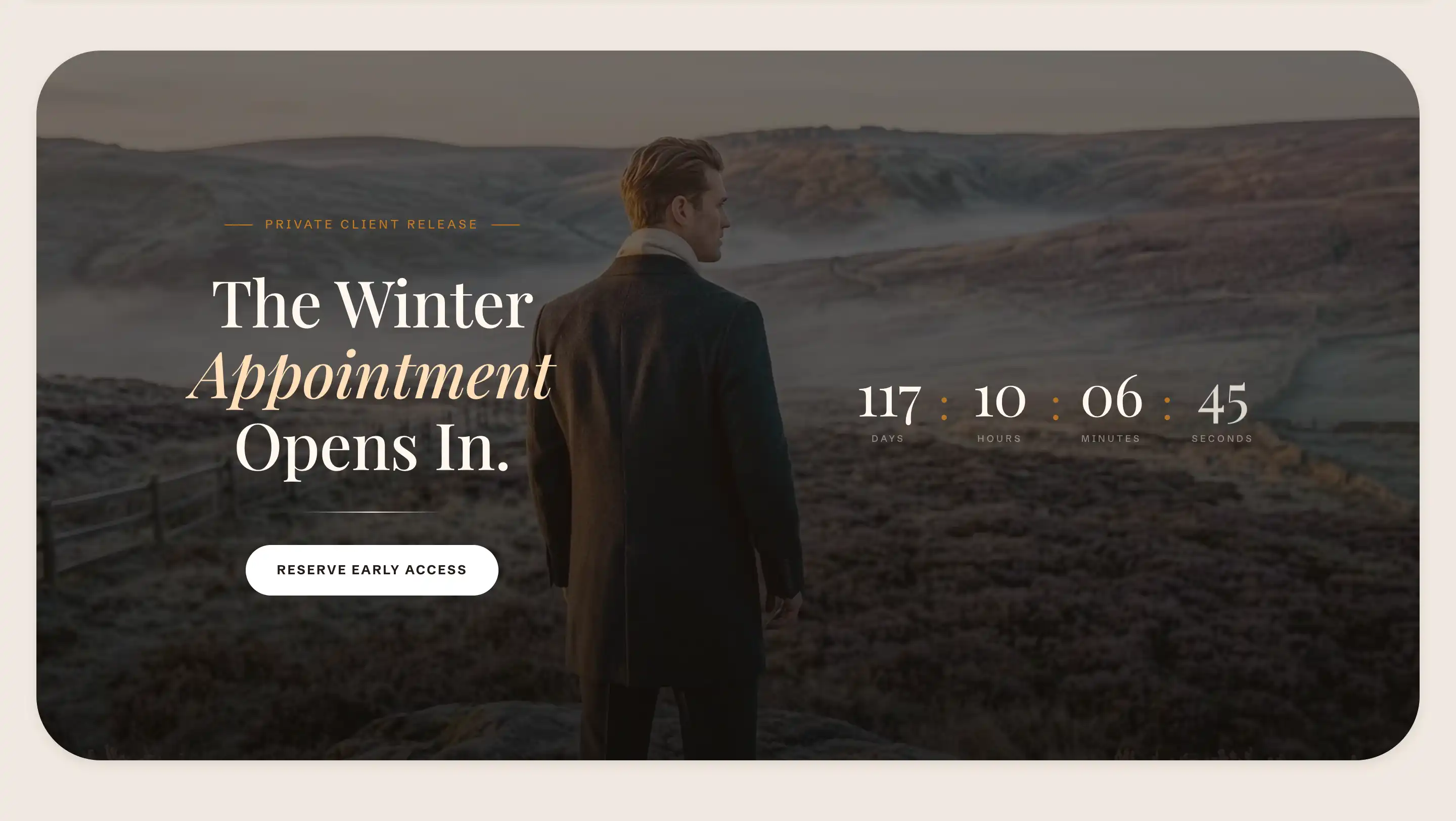
Add it
- In the theme editor, open the page where you want the countdown.
- Click Add section.
- Under Layout, choose Countdown.
It arrives as a Section holding a Parallax pane with a background image, a text Group, and a Countdown timer block. Change any setting and swap, add, or remove the blocks inside it.
Set the background
The background image, overlay, and rounded card live on the Parallax pane inside the section, not on the section itself. Select the Parallax pane in the block list to set its Background image and Overlay. Those are the standard container controls covered in Common section settings.
Countdown timer block
Select the Countdown timer block to set the target and how it counts.
Date and time
- Date: the day the timer counts down to. Format is
YYYY-MM-DD. - Time: the time of day on that date, in 24-hour
HH:MMformat. The timer uses your store timezone. - Show days: show a days unit alongside hours, minutes, and seconds. Turn it off for a countdown shorter than a day.
- Show separator: show a colon between each unit.
Appearance
- Alignment: where the timer sits in its space. Left, Center, or Right.
- Size: scales the timer from 50% to 150% of its default size.
When the timer expires
- Hide when expired: on by default. When the target date and time pass, the timer disappears from the live page. In the editor it stays visible so you can keep working on it.
- Expired message: shown in place of the timer after it reaches zero. This field appears only when Hide when expired is off. Use it for a line like "Now open" once the countdown ends.
This block also uses the standard Padding, Margin, and Visibility controls. See Common section settings.
Section settings
The Section that wraps the timer uses the standard Color, Layout, Size, Appearance, Border, Padding, Margin, and Visibility controls. See Common section settings.
Tips
- The countdown only disappears on the live storefront. In the editor it keeps showing past its date so you can edit it, so check the published page to confirm the expired state.
- To show a message instead of an empty space when the sale ends, turn off Hide when expired and fill in Expired message.
- Set the Date and Time to your store timezone, not the customer's. A shopper in another timezone sees the same remaining time, counting to the same moment.