Cart drawer and cart page
Reign gives shoppers two ways to view their cart: a Drawer that slides in over the page, or a full cart Page at its own URL. You pick one mode for the whole store, and most of the controls for both live in the Cart panel under Theme settings. The cart page itself is the Cart section, already placed on the cart template, and you fill its content with blocks.
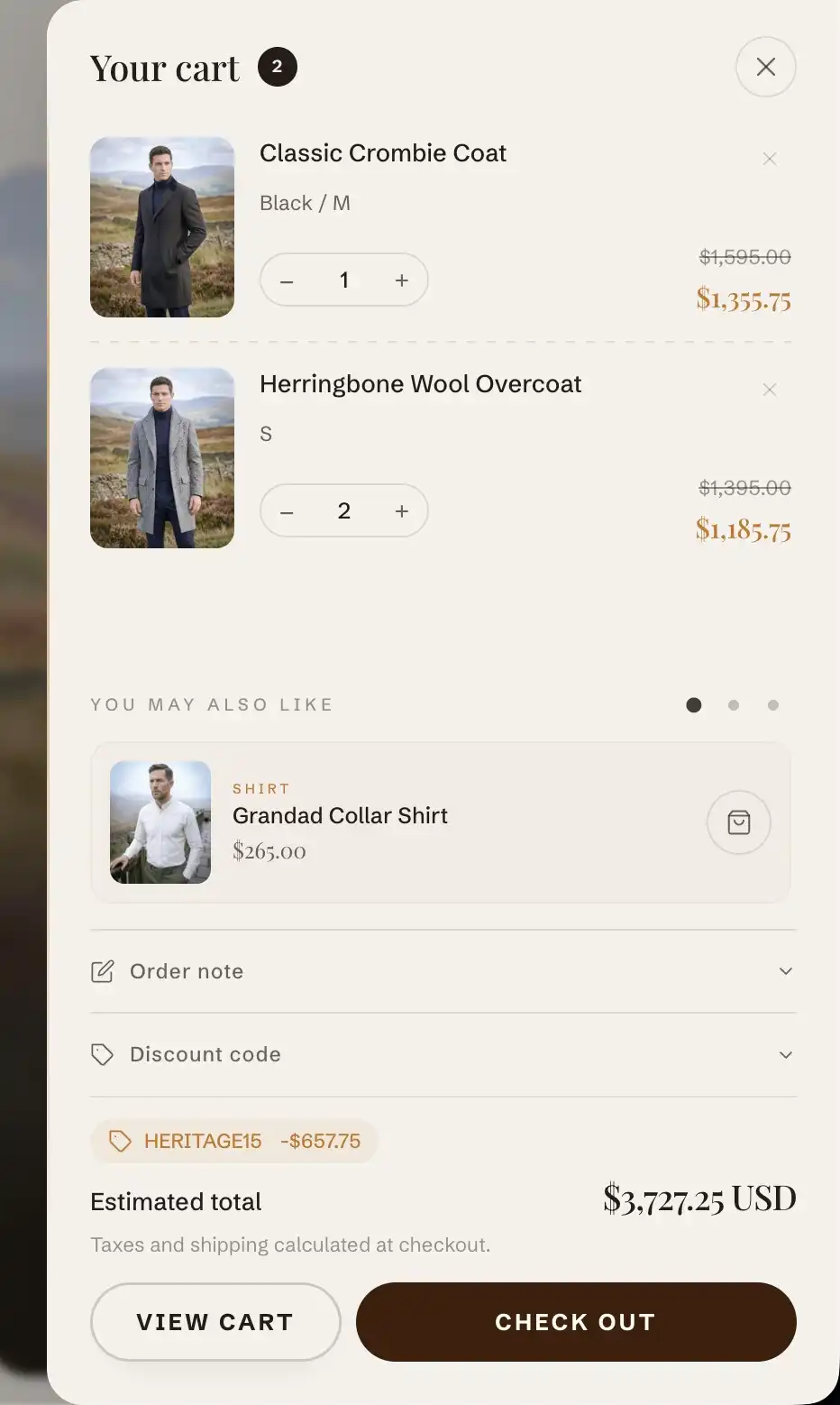
Drawer vs page
- Drawer: clicking the cart icon opens a panel over the current page, so the shopper stays where they are. The drawer can also open on its own right after an add to cart.
- Page: clicking the cart icon goes to the full cart page, with more room for line items and the order summary.
The cart page always exists at its URL, so the View cart link inside the drawer keeps working in either mode.
Choose drawer or page
- In the theme editor, open Theme settings (the gear icon at the bottom of the sidebar).
- Open the Cart panel.
- Set Cart type to Drawer or Page.
Cart panel settings (Theme settings)
The cart's behavior is set once in the Cart panel under Theme settings and applies wherever the cart appears: Cart type (drawer or page), the free shipping bar, order note, discount code field, accelerated checkout, drawer behavior, and recommended products. For every option in that panel, see Cart settings.
The Cart section (cart page)
The full cart page is the Cart section, fixed to the cart template. To edit it, choose Cart from the page picker at the top of the theme editor, then select the Cart section. It carries two content slots you fill with blocks:
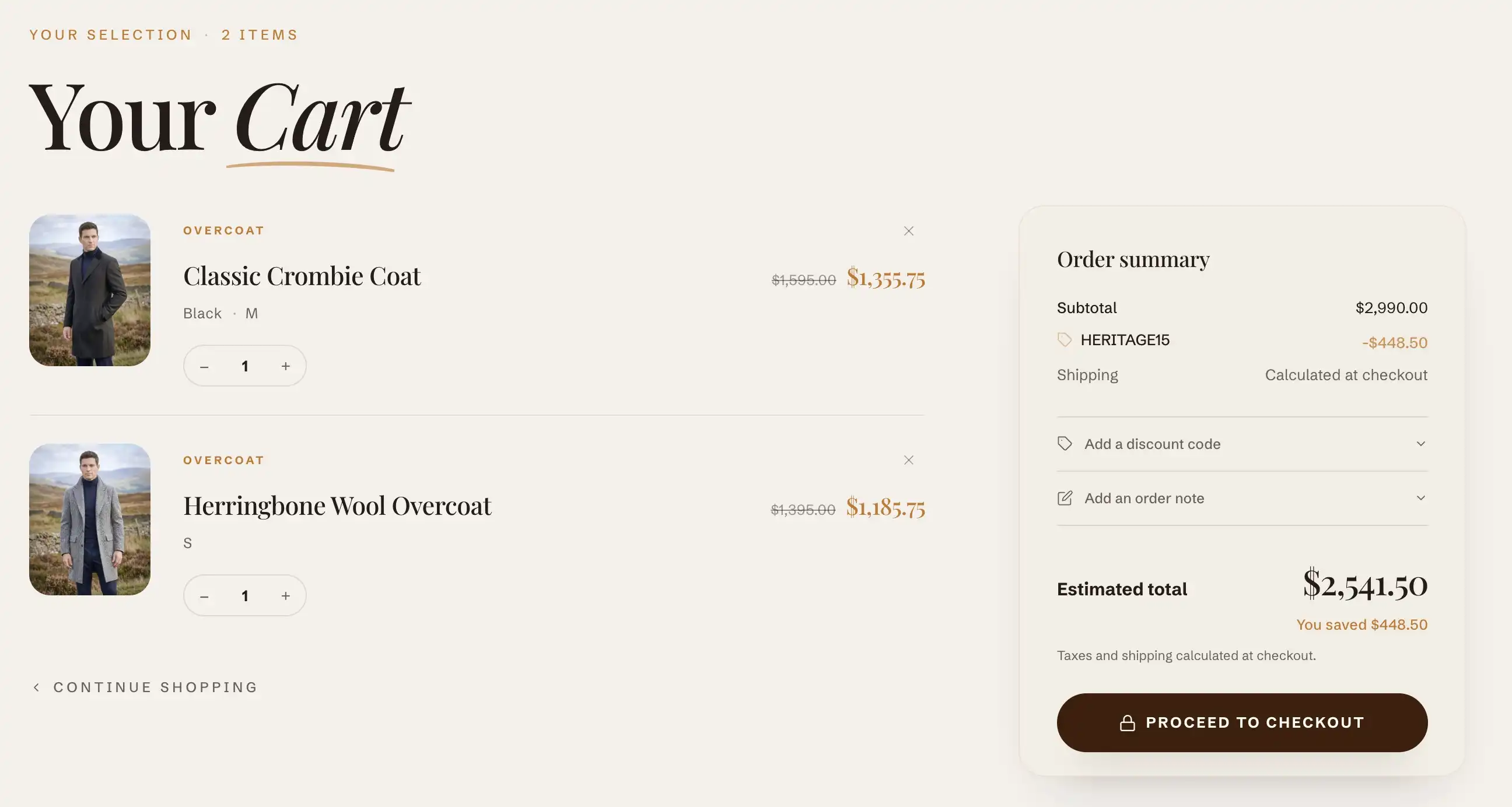
- Header: the page heading above the line items. The preset puts an Accent text block here that reads "Your Cart".
- Empty state: what shows when the cart has no items. The preset stacks an eyebrow, a heading, a short message, and a button.
The section adds one setting of its own, under Empty state:
- Image: an image shown next to the empty-cart content when the cart has no items. Leave it blank for a text-only empty state.
This section also uses the standard Color, Padding, Margin, and Visibility controls. See Common section settings.
The Cart drawer section
The Cart drawer section lives in the Overlays section group, which is always present in the theme. Open it from the section list in the editor: expand Overlays, then click Cart drawer. Almost everything about the drawer comes from the Cart panel (see Cart settings): the free shipping bar, order note, discount code, accelerated checkout, recommended products, and auto-open behavior. The drawer section itself uses only the standard Color controls. See Common section settings.
Tips
- The drawer is active only when Cart type is set to Drawer. If you switch the store to Page, the drawer does not render. Set Cart type back to Drawer to work on it.
- The empty-cart Image lives on the Cart page section, not in the Cart theme settings panel. To set an image beside an empty cart, edit the cart page.
- Show vendor and the Recommended products rail only ever show in the drawer. With a Page cart, they have no effect.
- Changing Cart type does not move any of your other cart settings. The order note, discount field, free shipping bar, and the rest stay configured and carry over to whichever mode you pick.