Buy buttons and sticky add to cart
These three blocks drive purchases in the Product information section. Buy buttons holds the add to cart and dynamic checkout buttons, Quantity selector sets how many to add, and Sticky add to cart is a floating bar that follows the customer as they scroll. Each block reads the product on the page, so there is nothing to pick or connect.
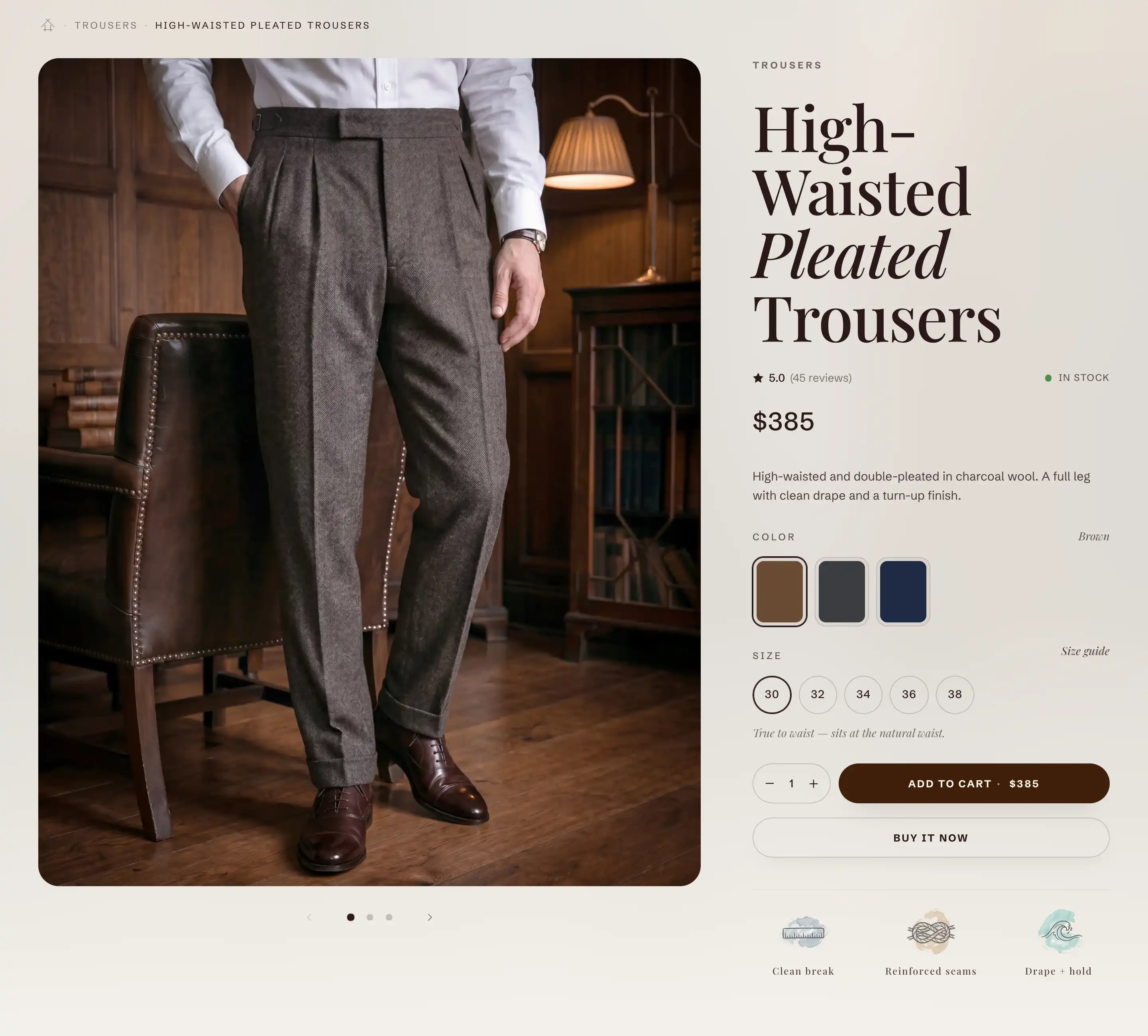
Buy buttons
The add to cart button, with optional express checkout buttons below it. The button label follows the variant: Add to cart, Sold out, Pre-order, or Unavailable.
Add or find it
- Open the theme editor and select a product template from the top bar.
- In the Product information section, select the Product info block.
- Add Buy buttons under it, in the Products group. If it is already there, select it to open its settings.
Settings
- Button style: the look of the add to cart button. Primary, Secondary, Primary outline, or Secondary outline.
- Show dynamic checkout: adds the express payment buttons under the add to cart button (Shop Pay, Apple Pay, Google Pay, and more). The set a customer sees depends on their device and your payment providers.
- Show price next to "Add to cart": prints the current variant price inside the button, after the label.
This block also uses the standard Margin controls. See Common section settings.
Quantity selector
The minus, number, and plus controls for the amount the customer adds. It follows any quantity rules set on the product's variants, so the minimum, maximum, and step come from the product, not from this block.
Add or find it
- In the Product information section, select the Product info block.
- Add Quantity selector under it, in the Products group, or select the existing block to edit it.
Settings
- Show "Quantity" label: shows the word Quantity above the controls. Turn it off for a tighter layout.
This block also uses the standard Margin controls. See Common section settings.
Sticky add to cart
A floating bar that appears when customers scroll past the product details. It shows the product image, title, price, and an add to cart button, so a customer can buy without scrolling back up. It submits to the same form as the main Buy buttons block, so keep both on the page.
Find it
The Sticky add to cart block sits in the Product information section. Select it in the section's blocks to open its settings. Its position in the block list does not change where the bar appears, since the bar floats over the page.
Settings
- Visibility: where the bar shows. Hidden turns it off without removing the block, All shows it everywhere, Desktop shows it on desktop only, Mobile shows it on phones only.
- Button style: the look of the bar's button. Primary, Secondary, or Primary outline.
- Show "Choose options": for a product with more than one variant, adds a button that sends the customer to pick a variant before adding to cart, instead of adding the default one.
This block also uses the standard Color controls. See Common section settings.
Tips
- Keep Buy buttons on the page even when Sticky add to cart is on. The bar reuses the same form, so it needs the main button it scrolls past.
- Match Button style across Buy buttons and Sticky add to cart so the floating bar reads as the same action.
- Show "Choose options" only affects products with more than one variant. On single-variant products the bar always shows a direct add to cart button.