All collections page
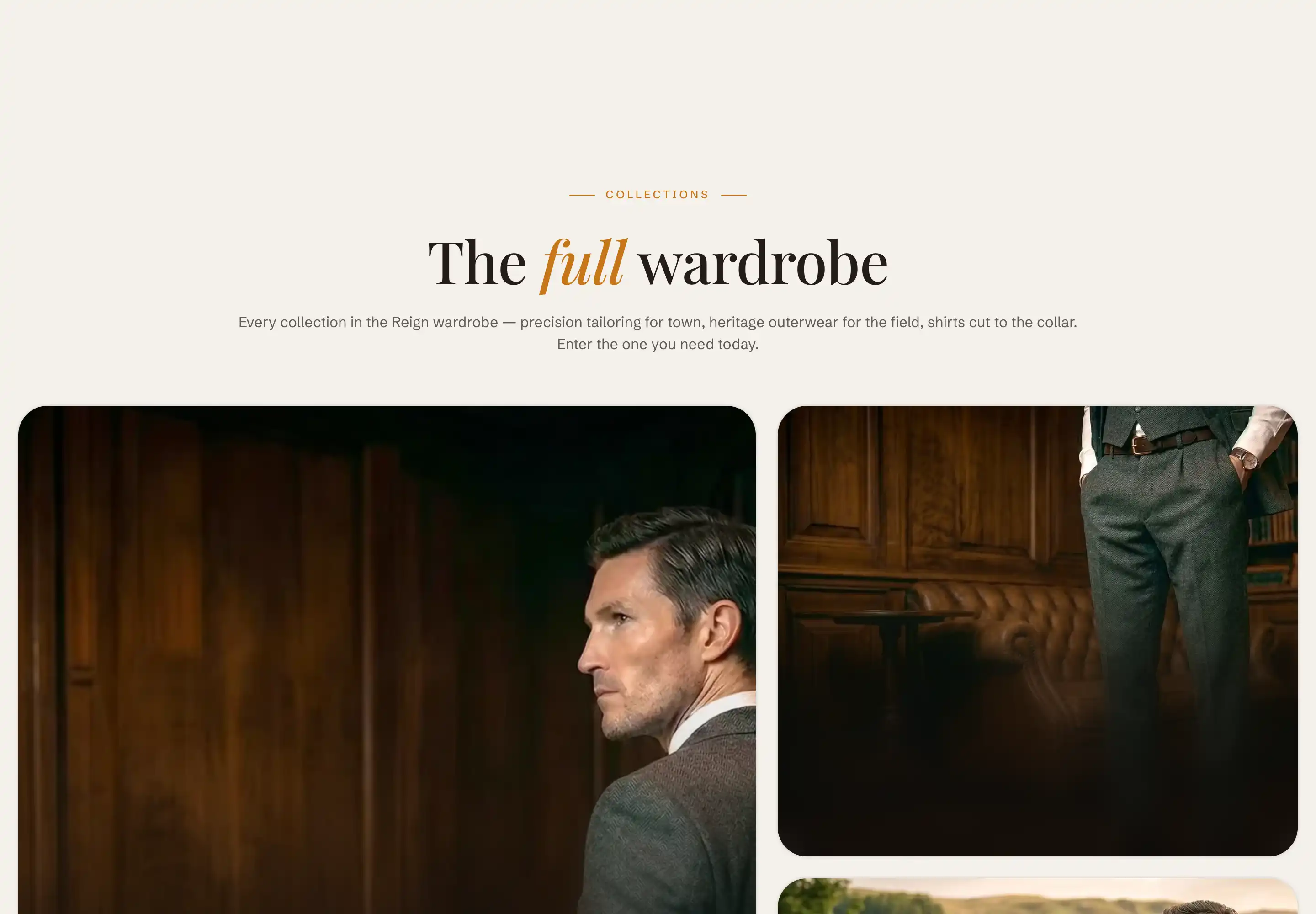
The all collections page lists every collection in your store, or a set you choose. Reign builds it from the Collections list section, which can show your collections as a varied mosaic or as a uniform grid with pagination.
This section is tied to the all collections page template. It does not appear in the Add section list on other pages.
Open the section
- In the theme editor, open the template picker at the top of the screen.
- Choose the Collections list page (the all collections page).
- Select the Collections list section in the editor sidebar.
Header
The section opens with a Header content slot that holds the eyebrow, heading, and intro text above your collections. The default heading is Shop by collection. Edit, reorder, or remove these blocks the way you would in any section.
Layout
These settings control which collections show and how they are arranged.
- Collections: pick the collections to list, in the order you want them. Leave it empty to list every collection in the store.
- Layout: Mosaic uses varied tile sizes for an editorial look. Grid uses uniform cards with pagination. The settings below change to match your choice.
- Maximum collections shown: the cap on how many collections appear in Mosaic layout (3 to 24). It applies only when no collections are picked above.
- Collections per page: how many collections show per page in Grid layout before pagination starts (6 to 24).
- Columns on desktop: the number of columns in Grid layout on desktop (2 to 5).
- Columns on mobile: the number of columns in Grid layout on phones, 1 column or 2 columns.
Each card uses the collection's image. A collection with no image falls back to its first product's image, then to a plain surface showing the collection title.
Color
This section uses the standard Color scheme control, plus Use dark header theme over this section to switch the header to its dark styling while it sits over this section.
This section also uses the standard Padding, Margin, and Visibility controls. See Common section settings.
Tips
- Pick collections under Collections when you want a fixed, hand ordered set, with your flagship collection first. Leave it empty to keep the page in sync as you add and remove collections.
- Maximum collections shown has no effect once you pick collections under Collections, because the picked set already defines what appears.
- Give each collection an image in the Shopify admin so the cards look intentional. The first product image and the title surface are fallbacks, not a substitute for a chosen image.