About and Lookbook pages
Reign ships two prebuilt page templates: an About page and a Lookbook page. Each one is a ready-made layout you assign to a page, so you start from a finished arrangement of sections instead of an empty page. You pick the template on the page itself in the Shopify admin, then edit its sections in the theme editor. A new page uses the basic page layout by default, so you switch the template to get the About or Lookbook design. Every section in them is a standard Reign section: see Sections, blocks, and groups.
Which prebuilt pages you have depends on the preset you installed. Every preset ships an about template (Freedom ships our-story and our-philosophy instead). The editorial showcase template is named per preset: lookbook in Reign and Freedom, the-kit in Apex, studio in Canvas, and the-valley in Harvest. They work the same way; only the template name and the sample sections differ. This article uses the Reign templates.
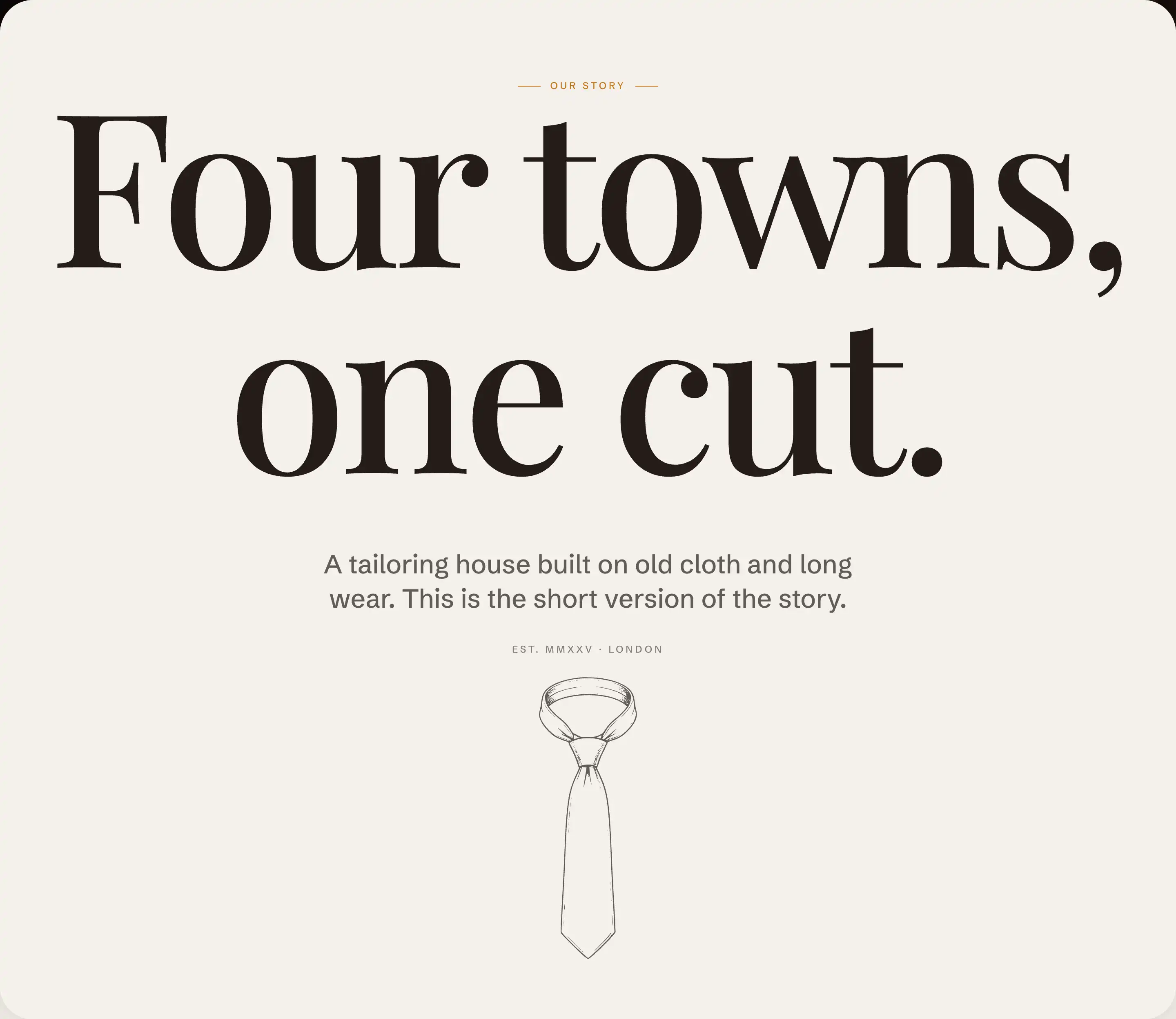
Assign a template to a page
- In your Shopify admin, go to Online Store, then Pages.
- Open an existing page or create a new one.
- In the Theme template box, open the dropdown and choose about or lookbook.
- Save the page.
- To edit the layout, open Customize on your theme, then use the top bar to navigate to that page. Its sections load in the theme editor.
Both templates come with placeholder text and empty image pickers. Replace the copy and add your own images section by section.
What the About page ships with
The About page tells your store's story. From top to bottom:
- Hero slideshow: a full-height opening with a heading, a short line of text, and a button. Add a background image to the slide.
- Section (Brand ethos preset): a short manifesto next to a mark, a divider, then three numbered values in columns. Rewrite the body copy in each value.
- Media card slider: a header above a row of overlay cards that link out, each with an eyebrow, heading, and button.
- Section (Quote preset): a press or customer quote with a byline and a button. Add a logo image above it if you want one.
- Section (Collage preset): three linked media cards in a collage. Add an image to each card.
- Featured collections: a header above a collection grid. It starts empty, so pick which collections to show (see Tips).
What the Lookbook page ships with
The Lookbook page presents a styled season or edit. From top to bottom:
- Hero slideshow: a full-height cover with an eyebrow, heading, text, and a button. Add a background image.
- Lookbook intro (a Section): the opening editorial piece, an image beside a text column with a heading, body copy, a small detail image, and a button.
- Editorial banner (a Section): a short statement centered over a full-height dark scheme.
- Shoppable image: one image with product hotspots customers tap to shop, framed by a header and a button.
- Pull quote (a Section): a short centered quote on the page's own scheme.
- Editorial feature (a Section): a second image and text column, mirrored so the text sits on the other side.
- Closing CTA (a Section): a bordered, rounded card inviting customers to take an action.
- Featured products: a header above a product row. It starts empty, so pick which products to show (see Tips).
- Brand promise (a Section): a four-column promise, each column with an illustration, label, title, and text.
Every section here uses Reign's standard controls, so you reorder, hide, or remove them the same way you would on any other page.
Tips
- The Featured collections section on the About page and the Featured products section on the Lookbook page ship empty. Open each one and use its picker to choose what shows. Until you do, those sections render placeholders.
- The Lookbook's Shoppable image hotspots point at demo products that are not in your store. Open each hotspot, select one of your own products, then drag it over the right spot on the image.
- Add a background image to the Hero slideshow slide on each template. Without one the hero shows only its color scheme behind the text.
- Switching the Theme template leaves your page title and body untouched. The template controls only the surrounding sections.
- Each section carries its own settings. See Common section settings for the shared color, spacing, and visibility controls, and open a section's own help article for what is unique to it.