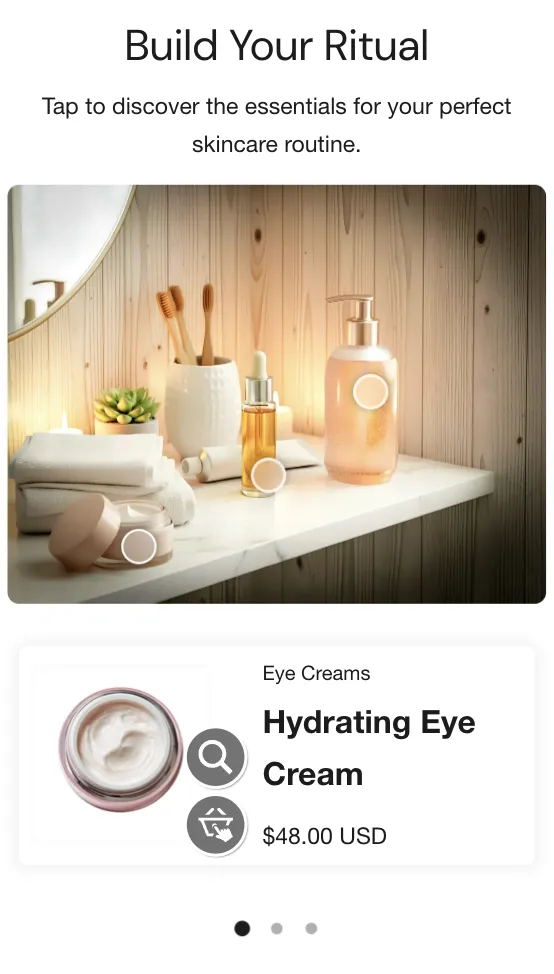
The Shoppable Image section transforms your photography into a discovery tool. By placing "hotspots" on an image, you can link specific items in a photo directly to their products.
Adding Hotspots
-
Add the Shoppable image section to your page.
-
Upload your main Image.
-
Add a Hotspot block.
-
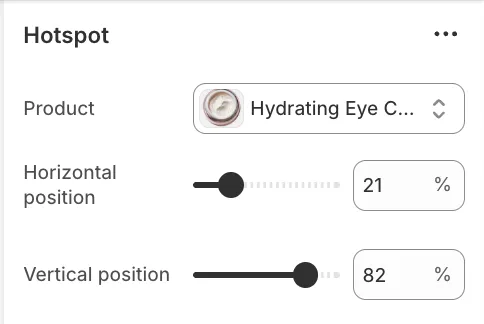
Select Product: Choose the product that corresponds to the item in the photo.
-
Positioning: Use the Horizontal position (X) and Vertical position (Y) sliders (0–100%) to move the dot exactly over the item.
Layout & Interaction
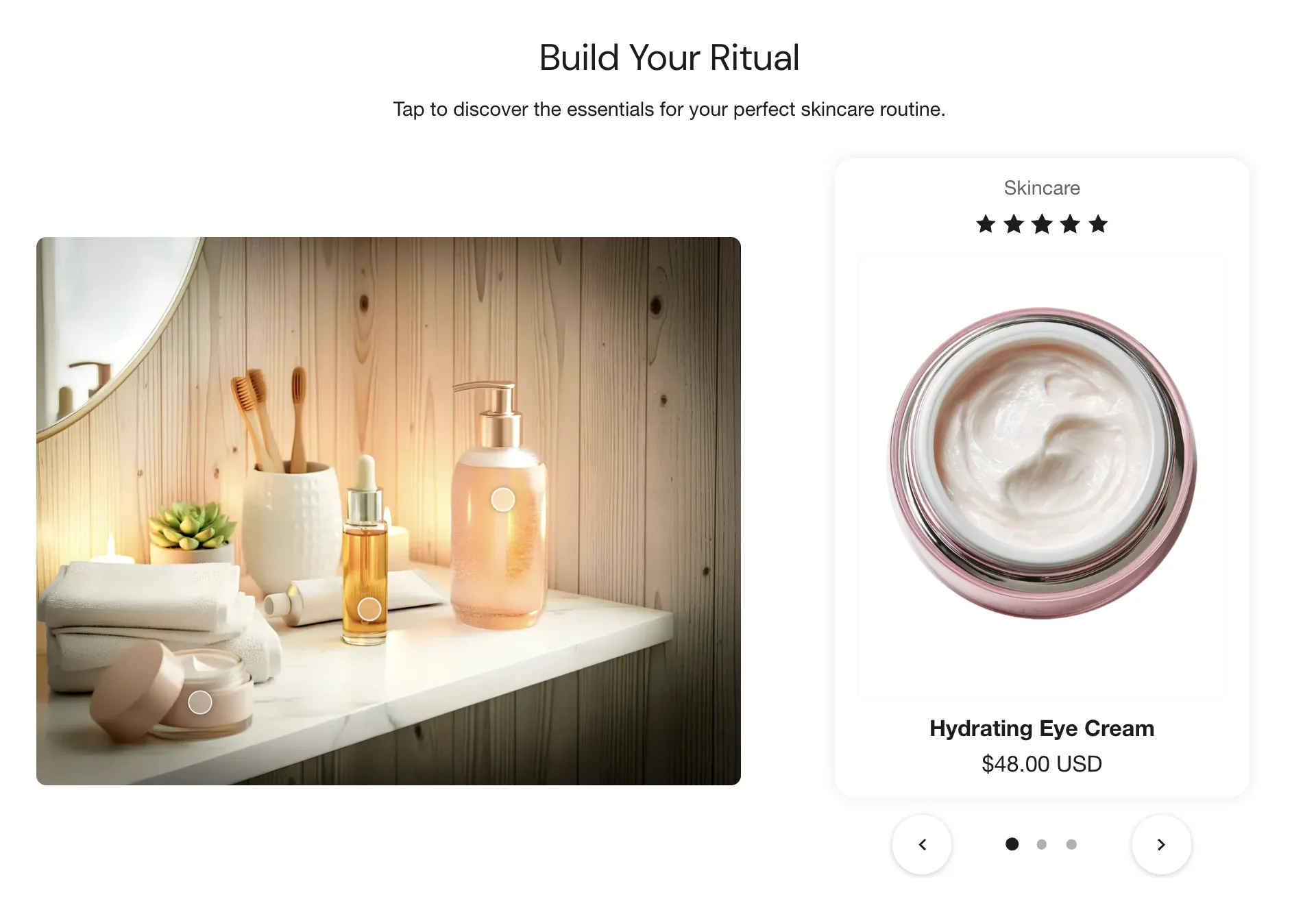
The Shoppable Image section works in tandem with a product slider. Instead of opening pop-ups, clicking a hotspot automatically slides the corresponding product into view.
Desktop
On larger screens, the layout is side-by-side. The product slider appears to the right of the main image, displaying standard product cards.
Mobile
To optimize the experience for smaller screens, the theme adjusts the layout:
-
Position: The product slider moves below the image.
-
Compact Design: The product cards switch to a compact, horizontal layout (image on the left, text on the right). This reduces the height of the section and makes browsing easier on mobile devices.