Line item properties allow customers to add personalization information to an item before they add it to their cart.
 This is perfect for collecting data such as:
-
Engraving text
-
Gift notes
-
"I agree to terms" checkboxes
-
Size or material preferences
This information is passed to the Order in your Shopify Admin but does not create separate product variants.
⚠️ Important: Line item properties are only captured when customers click Add to Cart within the main product form. If your products require mandatory personalization, we recommend hiding the Quick Add button on Product Cards, as this feature bypasses the product page and the required fields.
Adding the Block
-
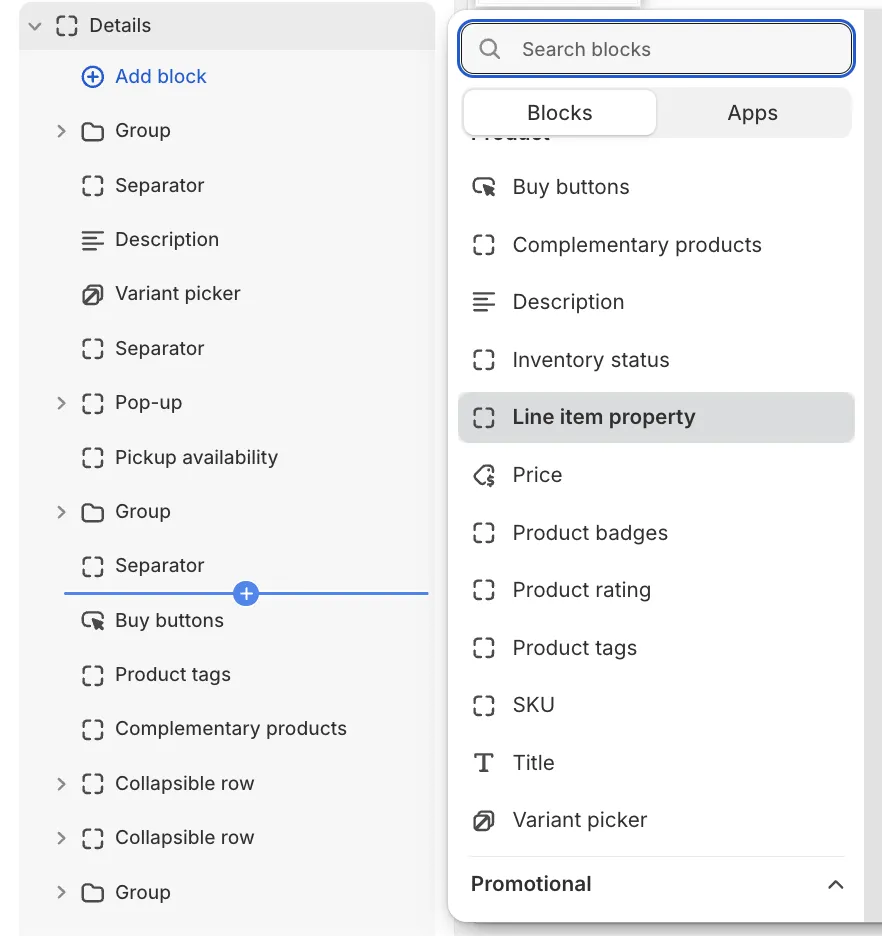
In the Theme Editor, navigate to the Product page (or a specific product template) where you want to add the customization field.
Note: If your store uses multiple product templates (e.g., Default product, Pre-order), remember to add this block to each template individually if needed.
-
In the Product information section, add the Line item property block to Details where you want it to appear.
Configuration Options
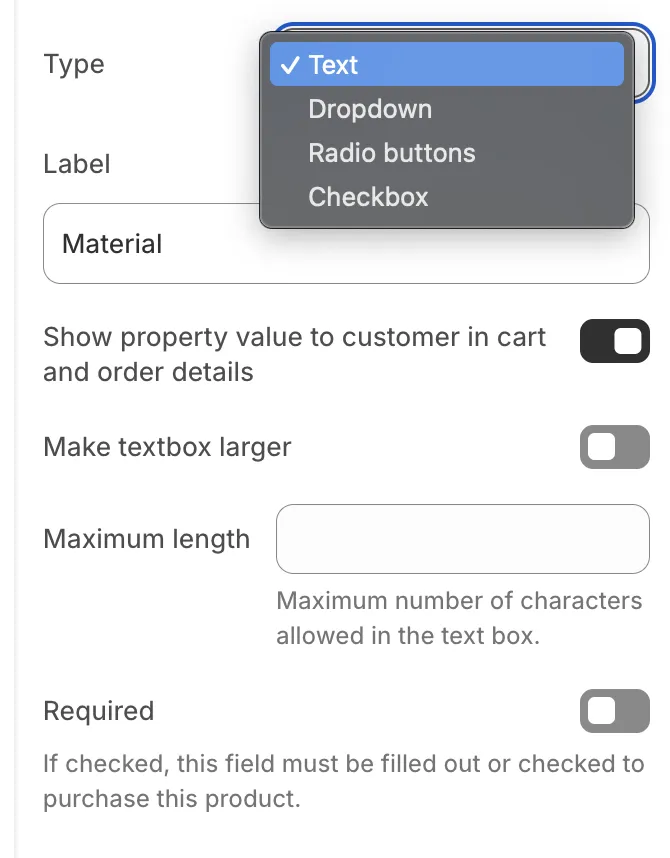 You can create unlimited property fields by adding multiple blocks. Each block supports four distinct types:
1. Text
 Creates a standard input field for typing.
-
Make textbox larger: Turns the single-line input into a multi-line text area (great for long gift messages).
-
Validation: You can enforce a Minimum length or Maximum length to ensure the customer provides the correct amount of information.
2. Checkbox
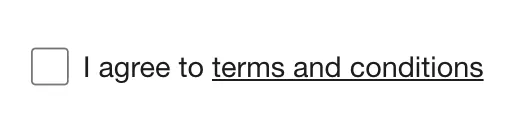 Creates a single tick box.
-
Required: If checked, the customer must tick the box to purchase the item.
-
Rich text label: Use this field to add links to your label text. This is ideal for "I agree to the Terms and Conditions" checkboxes where "Terms and Conditions" needs to be a clickable link.
3. Dropdown
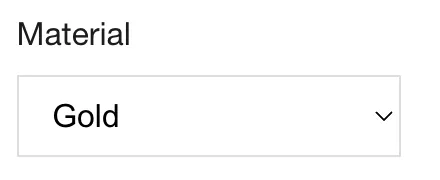
Creates a select menu.
- Options: Enter your choices separated by commas (e.g.,
Gold, Silver, Bronze).
4. Radio Buttons
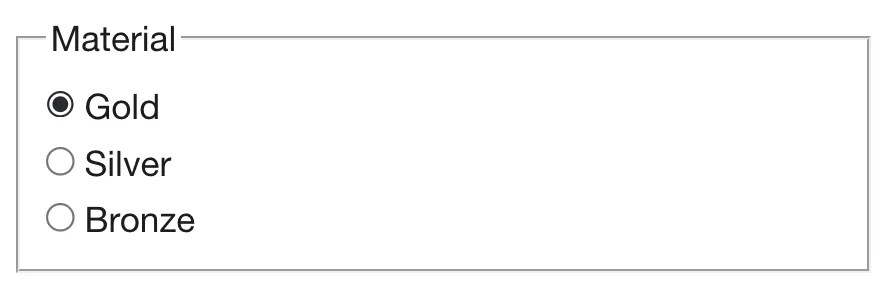 Similar to a dropdown, but all options are visible at once as clickable buttons.
- Options: Enter your choices separated by commas (e.g.,
Gold, Silver, Bronze).
Display for customer
 By default, the information entered by the customer is visible in the Cart, Checkout, and Order confirmation emails.
If you uncheck Show property value to customer, the theme automatically adds an underscore (_) prefix to the property name (e.g., _InternalRef). Shopify hides properties starting with an underscore from the customer's view in the checkout process, though they remain visible to you in the Admin order details.