Setting up Swatches
Freedom utilizes Native Shopify Swatches.
Because this feature is native to the platform, the data is managed in your Shopify Admin, not the Theme Editor.
You must configure your products using Category Metafields. When you assign a product category (e.g., "Apparel & Accessories > Clothing"), Shopify allows you to add a "Color" entry for your variants.
Click here to learn how to set up Category Metafields in Shopify Help Center.
Once you define a color (e.g., "Navy Blue") in the admin, Shopify automatically assigns a hex code or allows you to select a custom color/image for that value. The theme simply displays what you have configured there.
Enabling in the Theme
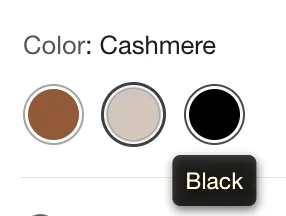
Navigate to the Product information section and click on the Variant picker block.
-
Ensure the Enable swatches checkbox is selected (this is enabled by default).
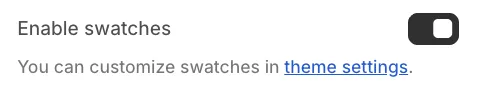
-
If unchecked, the theme will display standard text buttons or dropdowns instead of color swatches.
Visual Customization
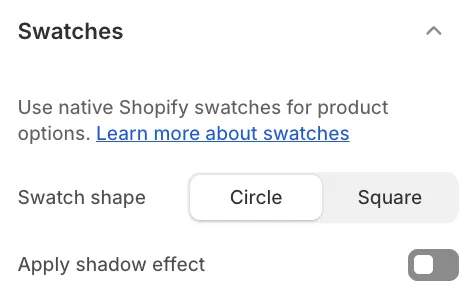
You can customize the appearance of your swatches globally. These changes will affect swatches on the Product Page, Collection Filters, and Featured Product sections.
Go to Theme Settings > Swatches:
-
Swatch shape: Choose between Circle or Square.
-
Apply shadow effect: Adds a subtle border effect to the swatches.